

Timesheet and profit
Hours worked come in automatically from worksheets and the Daily plan. You correct them, close the month, give it to your accountant in Excel and see the profit on each job.
Office / administratorSuper AdminOptional module
The Timesheet and profit page (under Administration) is for the office. Nobody types hours by hand: the app takes them from completed worksheets and from the rows in the Daily plan. You only correct them where needed.
Monthly timesheet
- Open Timesheet and profit → the 🗓 Monthly timesheet tab.
- Pick the month with the ‹ › arrows. The table shows each person, day by day, with totals: hours, days, overtime, weekend, CO, CM, L.
- Tap a day to correct it: type the hours (e.g. 8, 7.5 or 7:30), pick a code or write a note, then tap Save.
- Days corrected by the office are shown in bold blue. ↩️ Revert to the calculated value cancels the correction.
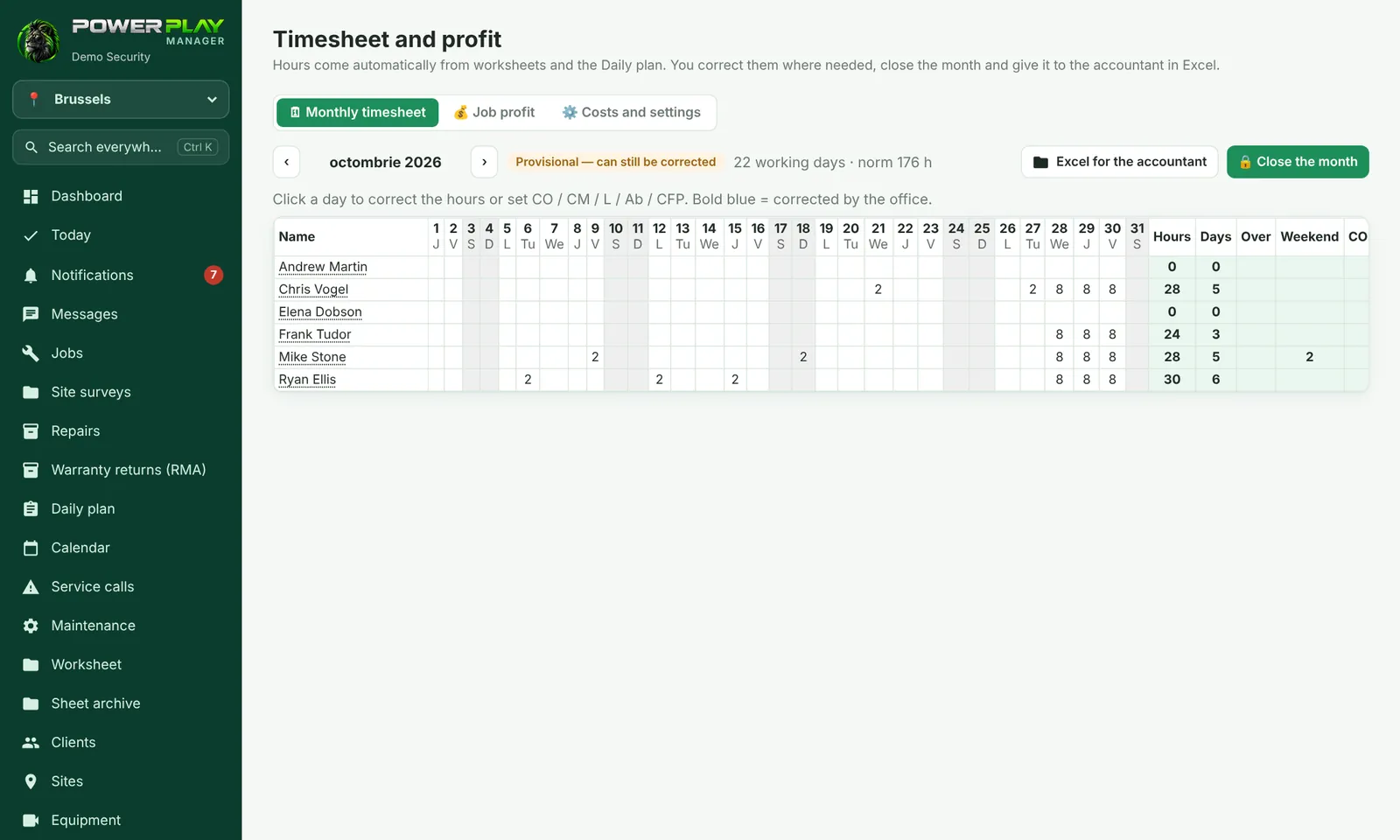
Possible codes: CO — paid holiday, CM — sick leave, L — day off, Ab — unexcused absence, CFP — unpaid leave. Leave entered in the Daily plan appears automatically. Weekends and public holidays are marked.
Close the month and send it to the accountant
- Check the month and make your corrections.
- Tap 🔒 Close the month and confirm. The timesheet stays exactly as it was when you closed it.
- Tap Excel for the accountant to download the file.
Only the Super Admin can reopen a closed month, with Reopen the month. Corrections already made are kept.
Job profit
The 💰 Job profit tab is visible only to the Super Admin and the administrators they tick. Choose the period (From, Until) and tap Show. For each job you see: invoiced (excl. VAT), labor, materials, travel, other costs, profit and margin. Jobs that lose money are at the top. Further down you see profit per client and per person.
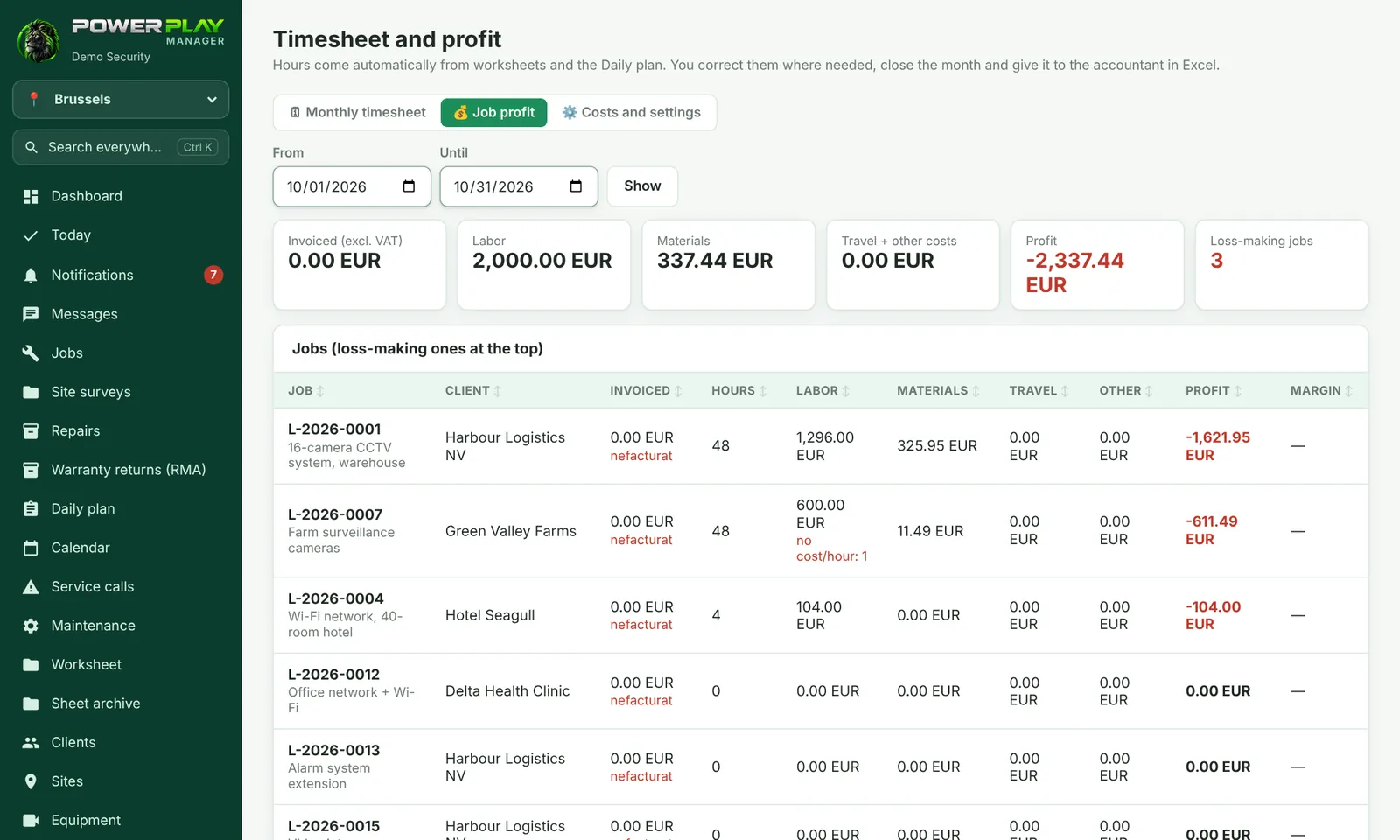
- Labor = hours × each person's hourly cost.
- Materials = from stock + receipts and invoices from Materials & reimbursements.
- Travel = km from the trip logs × cost per km.
- Each job page shows the 💰 Job profit card, with a Cost button for extra costs (subcontractor, daily allowance, accommodation, transport, rentals).
Costs and settings
In the ⚙️ Costs and settings tab you set Hours per day (norm). The Super Admin also sets Cost per km, the VAT percentage deducted from receipts, each person's hourly cost, and ticks who else can see profit. Tap Save.
Frequently asked questions
Where do a person's hours come from?
From completed worksheets they are on and from the Daily plan rows they are assigned to (up to today). Tap a day to see which jobs the hours come from.
A job shows “no cost/hour”.
One of the people on it has no hourly cost entered. The Super Admin fills it in under ⚙️ Costs and settings.
Can I correct a closed month?
No, not until the Super Admin reopens it.