

Sites
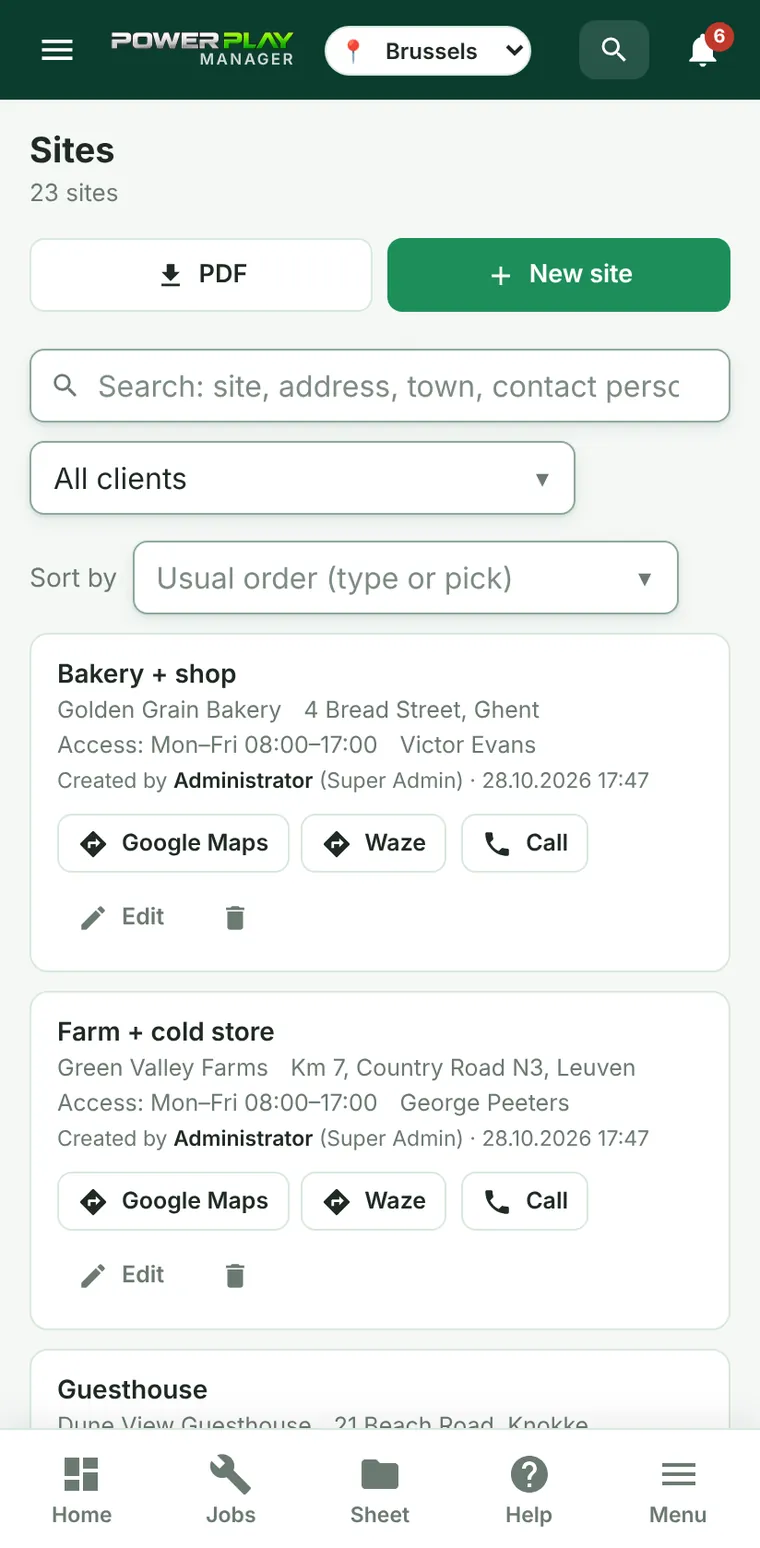
The addresses where you work for each client (head office, warehouse, shop), with the contact person, access schedule and direct navigation with Google Maps or Waze.
TechnicianOffice / administratorSuper Admin
A client can have several sites: the head office, a warehouse, two shops. Each site has its own address, its own contact person and the hours when you can get in. On jobs, service calls and equipment you choose the site, so the technician knows exactly where to go.
The list of sites
The Sites menu shows the sites of all clients. You can search by site, address, town or contact person, and you can choose a client from the All clients list.
Each site has Google Maps and Waze buttons, which start navigation there, and on the phone also Call, for the contact person.
How to add a site
Sites are added by the office (administrators and Super Admin).
- Open Sites and tap New site. (Or, from the client record, tap New site on the “Sites” card.)
- Choose The client.
- Write the Site name (e.g. “Central warehouse”), Address and Town.
- Fill in the Access schedule (e.g. “Mon–Fri 08:00–17:00”), Contact person and Phone.
- If you want navigation to an exact point, enter Latitude (GPS) and Longitude (GPS).
- Tap Save.
Why GPS coordinates matter
Without coordinates, the navigation buttons search by address. For sites that are hard to find (a warehouse in an industrial area, a building site, a house at the edge of a village) enter the latitude and longitude: navigation takes you right to the gate.
- Open Google Maps and press and hold on the exact spot.
- Copy the two numbers that appear (e.g. 44.1733, 28.6383).
- Put the first number in Latitude (GPS) and the second in Longitude (GPS).
Editing and deactivating
Tap the pencil next to the site (Edit), change the details and save. A site that is no longer used is deactivated with the bin button: it no longer appears in lists, but old jobs and equipment stay linked to it.
Frequently asked questions
Can a technician add sites?
No. Technicians can see sites and navigate to them, but adding and editing is done by the office.
The “Google Maps” button doesn't appear for a site.
The buttons only appear if the site has an address or GPS coordinates. Fill in the address under Edit.