

Signing in and your account
How to sign in, what to do if you forgot your password, how to turn on two-step verification and what you find in "My account".
TechnicianOffice / administratorSuper Admin
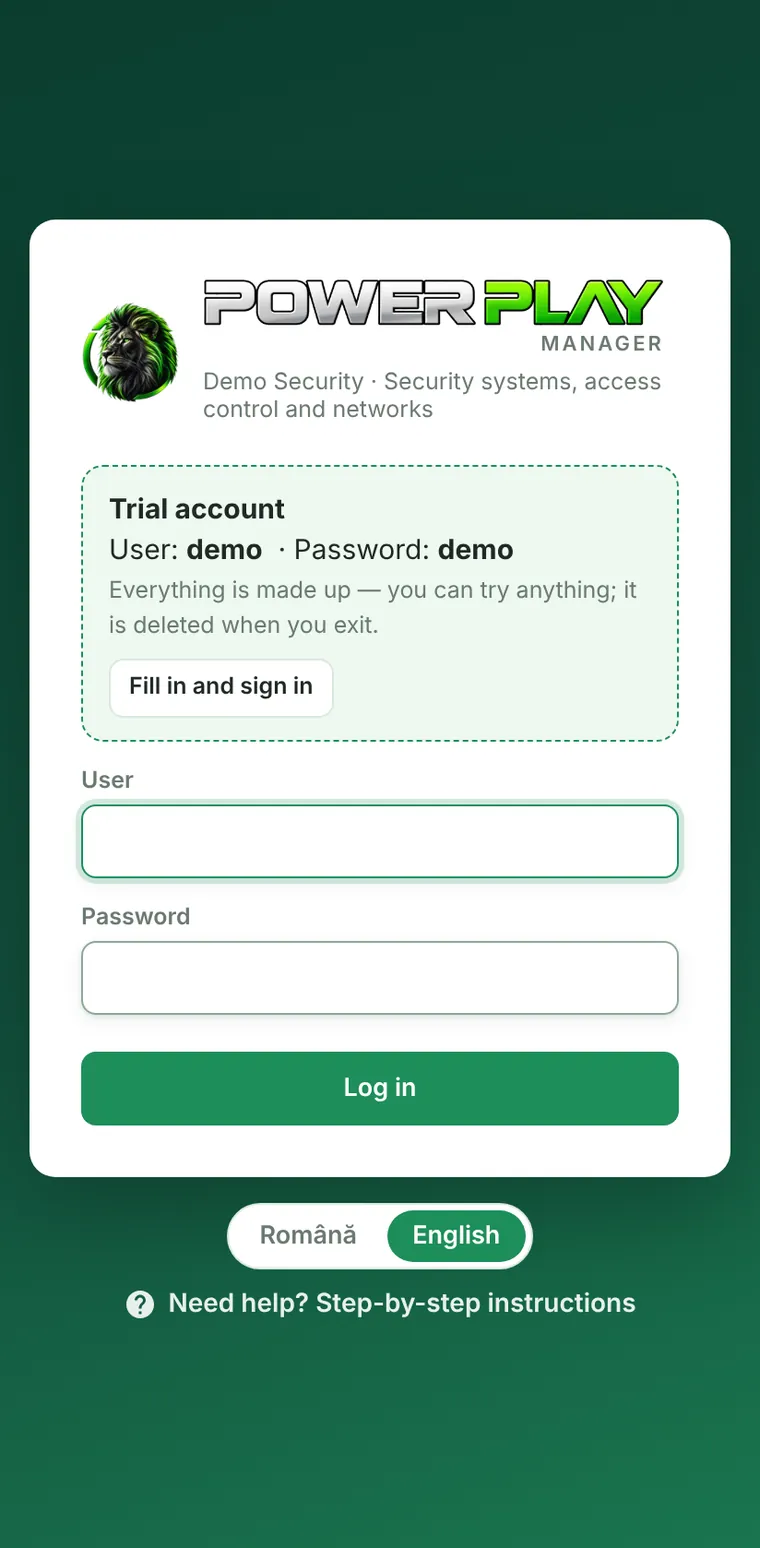
Signing in
- Open the app address you got from your company.
- Enter your User name and Password.
- Tap Log in.
- The first time (and after your password has been reset) the Choose a new password window appears: type the old password, then the new password twice (at least 6 characters) and tap Save password.
Forgot your password?
The app has no "forgot password" button. Ask an administrator to reset it in Users, with the Password button. You get a new password, and when you first sign in you choose your own.
After several wrong passwords in a row, the account is locked for a few minutes, for protection. The Super Admin can unlock it immediately in Users (the 🔒 Locked after wrong passwords card → Unlock).
Two-step verification
Besides the password, the app also asks for a 6-digit code from your phone. Someone who finds out your password still can't get in. It can be turned on only for Super Admin accounts.
- Install Google Authenticator or Microsoft Authenticator on your phone (both free).
- In the app, tap your name (at the bottom of the menu) → My account.
- On the Two-step verification card, tap Turn on two-step verification.
- In the phone app, tap + → Scan a QR code and scan the code on the screen.
- Type the 6-digit code and tap Start.
- Keep the backup codes shown (print them or write them down somewhere safe), then tap I have saved them. You won't see them again.
From now on, after your password you enter the code from your phone. You can tick Remember this device for 30 days so you won't be asked for the code on that computer or phone. If you don't have your phone with you, enter one of the backup codes (each works only once).
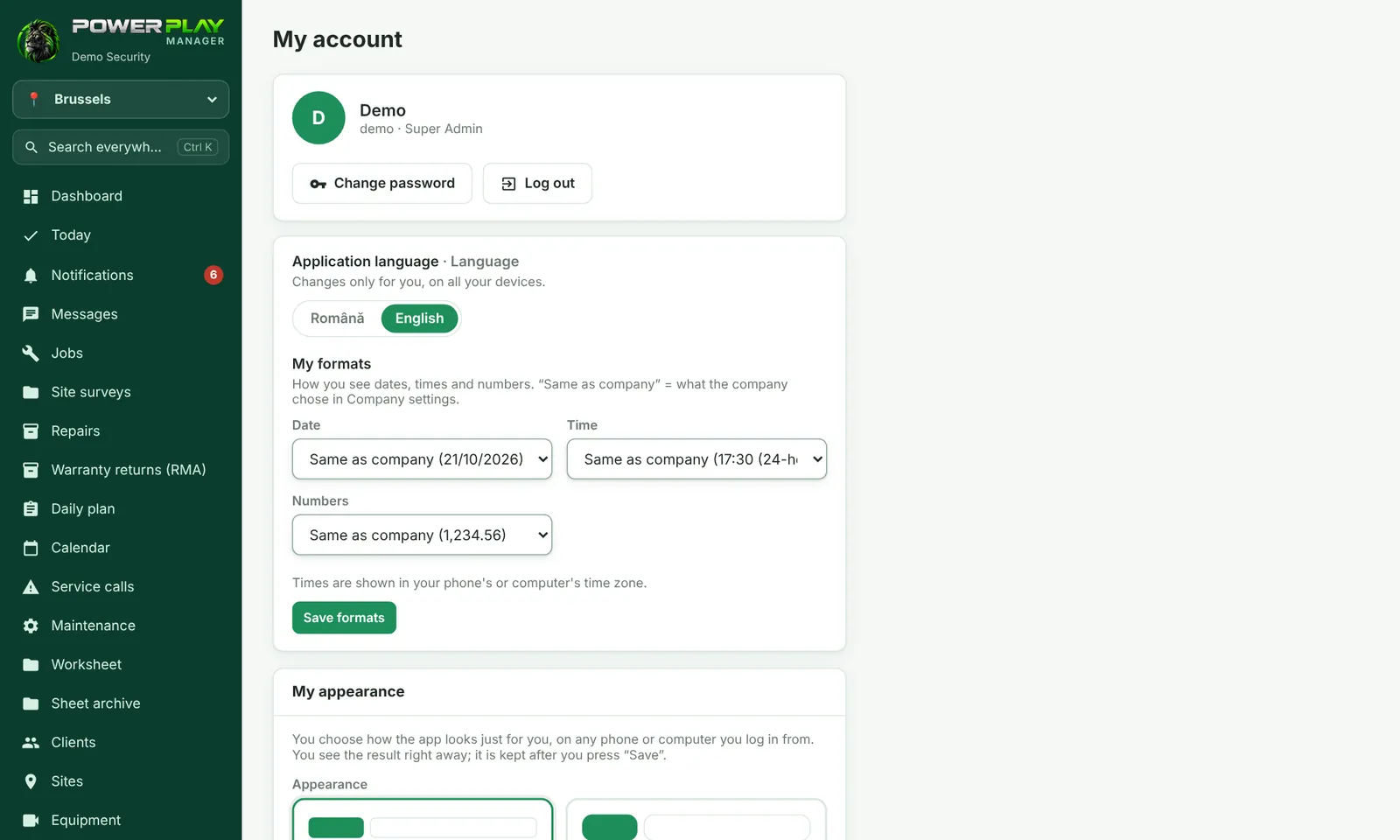
My account
Tap your name at the bottom of the left menu. The My account page has:
- Change password and Log out.
- Application language (Română / English) and My formats: how you see the date, time and numbers.
- My appearance: Business or Friendly look, text size, light or dark, and the helpers (page explanations, "What do you want to do?", grouped menu). Tap Save.
- Two-step verification (Super Admin only).
Signing out
Tap the sign-out button next to your name (or in the top bar) and confirm with Yes, sign out. On a phone or computer shared by several people, always sign out when you're done.
Frequently asked questions
I lost the phone with the codes. What do I do?
Enter a backup code. If you no longer have them, another Super Admin taps the 🔐 2-step label next to your name in Users and turns off two-step verification. You can then turn it on again from My account.
Why was I signed out?
The Super Admin can set the app to sign people out after a period of inactivity. Sign in again with your user name and password.
Can I change my password any time?
Yes: My account → Change password.