

Password vault
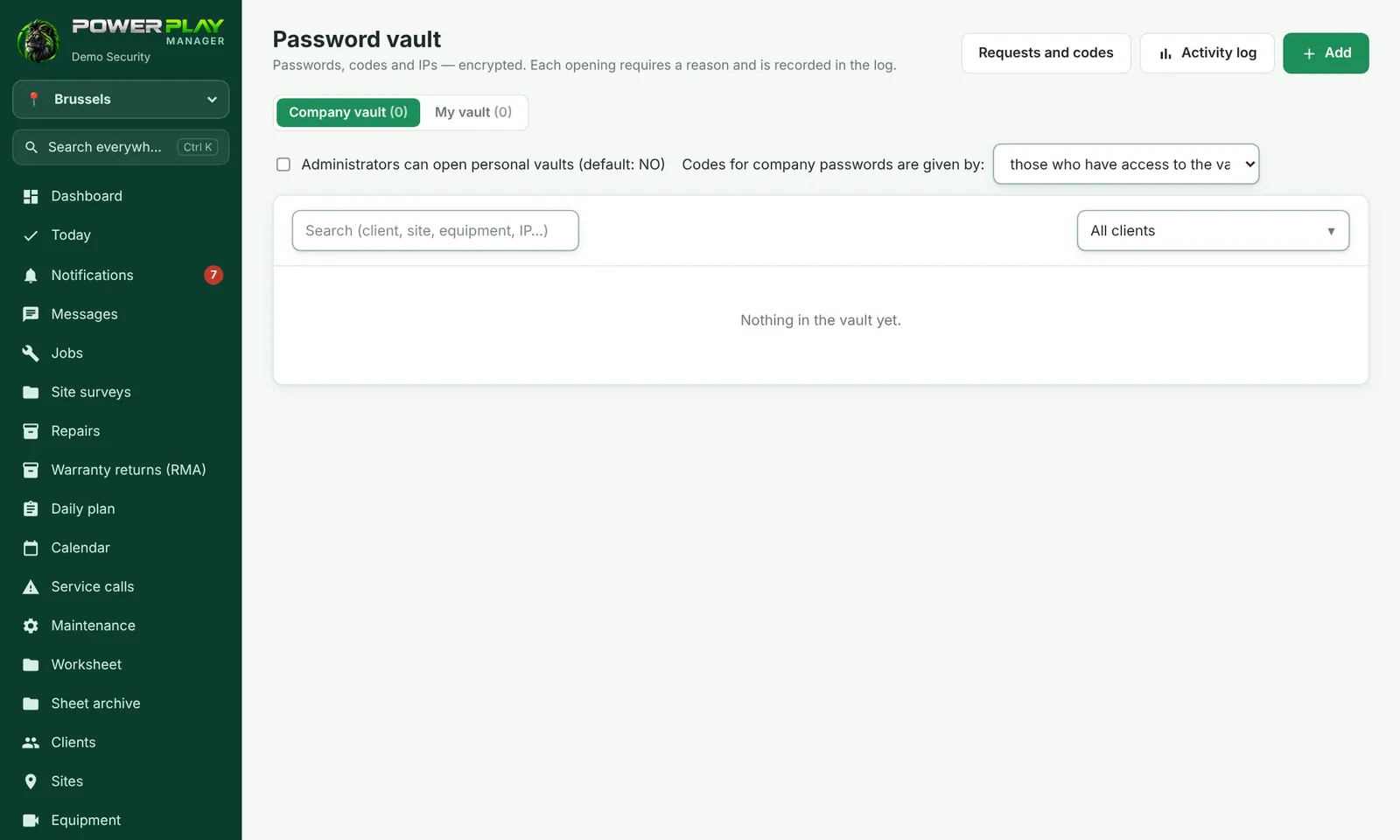
The safe place for passwords, codes and IP addresses of your clients' equipment (NVRs, alarm panels, routers): encrypted, shown only with a reason and recorded in a log.
TechnicianOffice / administratorSuper AdminOptional module
NVR passwords, installer codes for alarm panels, router details and cloud accounts no longer live on paper or in someone's phone. In the Password vault they are stored encrypted, and each time someone opens one they must give a reason, which is recorded in the log.
Who has access
The Super Admin ticks for each person, in Users → Edit:
| Option | What it means |
|---|---|
| Vault: PERMANENT access to the company passwords | sees passwords directly, but must give a reason every time |
| Vault: can REQUEST codes | sees what exists, but to see a password must request a code from someone who has access |
| Vault: has a PERSONAL vault | has their own vault (their sites, IPs, passwords); only they and the Super Admin can open it |
The Super Admin sees everything. Anyone with none of these options does not see the Password vault menu at all.
How to add a password
- Open Password vault (or the Password vault card on the client page) and tap Add.
- Choose the client, the site and, if it is in the list, the equipment.
- Choose the Type (NVR / DVR, Alarm panel, Router / switch, Wi-Fi network, etc.) and fill in What it is (e.g. “Reception NVR”).
- Fill in what you have: IP / address / DDNS, Port, network details, App / cloud account, User, Password.
- Under Codes (installer, master, PIN…) add installer, master or PIN codes (use One more code for more).
- Tap Save.
How to view a password
- Find the equipment in the list (by client or by name) and tap Show.
- Write why you need it (e.g. the service call number). The reason is required.
- The password and codes appear on screen, with a Copy button. They hide automatically after 30 seconds.
Every Show is recorded in the log (who, when, what, why), and the Super Admin gets a notification.
Requesting a code (for people without permanent access)
- On the password you need, tap Request code and write the reason.
- The request goes to the people who have access to that password. They see it under Requests and codes and tap Give code.
- The person giving the code chooses whether it is single-use or Permanent (until someone revokes it), and whether it is for that password only, for all of the client's passwords, or for the whole vault.
- You receive the code in the app (under Notifications) or on your phone. Tap I have a code, enter the 6-digit code and the reason.
Permanent codes can be revoked at any time from Requests and codes. The Super Admin chooses whether company passwords can be given by everyone with access or only by administrators.
Personal vaults and the log
- Others can see that a personal vault exists and the titles in it, but not the IPs and passwords. They can tap Request access to the whole vault; access is given by the owner or a Super Admin, for one day, 7 days, 30 days or until revoked.
- Administrators cannot open personal vaults, unless the Super Admin ticks Administrators can open personal vaults.
- If someone leaves the company, the Super Admin can move their passwords to the company vault or to another person.
- The Activity log shows who viewed which password, when and why, plus what was added, edited or deleted. The Super Admin sees all of it; each person sees the log of their own vault.
Frequently asked questions
Can I see a password without writing a reason?
No. The reason is required every time and stays in the log.
I requested a code but didn't get it.
The request waits until someone with access approves it. Check Requests and codes and call a colleague with access or the Super Admin.
Where else can I find a client's passwords?
On the client page, in the Password vault card. The card appears only for people who have access to the company vault.