

Warranty returns (RMA)
Track faulty devices sent back to the supplier under warranty: when they left, when they came back, what the supplier did and which device you left with the client in the meantime.
TechnicianOffice / administratorSuper AdminOptional module
An NVR breaks, a camera won't turn on — and they have to go back to the supplier under warranty. Without a record it's easy to lose track: what left, when, with which tracking number (AWB), what came back. In Warranty returns (RMA) every device sent has its own file with all the stages.
How to open an RMA file
The easiest way is to start where you found the fault: on the equipment record, on the Repairs sheet, on a service call or on a site survey, tap 🔁 Send for warranty (RMA). The client and the device fill in automatically.
- Or open Warranty returns (RMA) and tap New RMA.
- Choose From the client (and the client, and their equipment if needed) or From stock (new, faulty) (the product and the place it comes from).
- Write which device is being sent, the brand, model, serial number and the fault.
- Choose the Supplier (or type it, if it's not in the list) and fill in the purchase invoice and the supplier warranty, if you have them.
- Leave The client sees the status in the portal ticked if you want the client to follow the device.
- Save. The file gets a number.
File stages
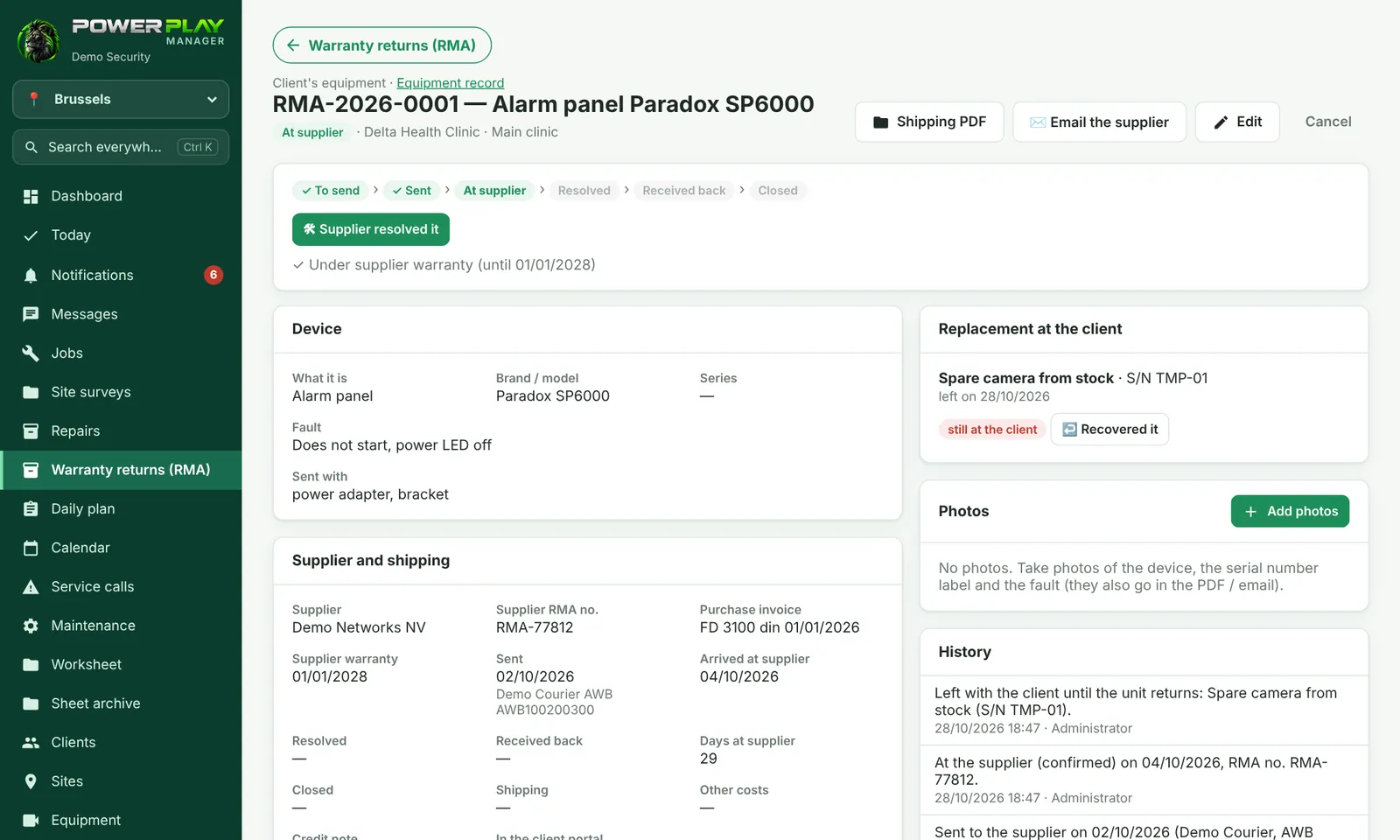
The file goes through: To send → Sent to the supplier → At the supplier (confirmed) → Resolved by the supplier → Received back → Closed. Move to the next stage with the buttons in the file:
- 📦 Sent to supplier — with the courier and the tracking number (AWB).
- ✅ Supplier received it.
- 🛠 Supplier resolved it — choose what they did: Repaired, Replaced with another (write the serial number of the new device), Credit note / refund or Rejected (not under warranty).
- 📥 Received it back.
- 🏁 Close (handed over / in stock).
What happens when you close it
- Device replaced: the new serial number is copied automatically to the client's equipment, and the notes keep a record of what changed.
- Device repaired: the client's equipment goes back to “Working”.
- Device from stock repaired or replaced: it goes back into stock, at the chosen place.
- Rejected or credit note: the client's equipment stays “Faulty”.
The replacement left with the client
If you left the client a device until theirs comes back, tap Leave a replacement and write which device you left (with its serial number). When you take it back, tap ↩️ Recovered it. The app warns you if the replacement is not recovered a few days after the file is closed.
PDF, email, photos and reports
- Shipping PDF — the sheet that goes with the device to the supplier.
- ✉️ Email the supplier — sends the email with the PDF attached, from the company email.
- Photos — take photos of the device, the serial number label and the fault; they also go into the PDF and the email.
- Reports — by supplier and by brand: how many devices, how many days they stayed with the supplier.
- Settings (administrators) — after how many days at the supplier you get an alert, and after how many days you are reminded about the replacement.
Who can do what
| Who | What they can do |
|---|---|
| Technician | opens files, changes stages, adds photos and the replacement |
| Office (administrators, dispatchers) | also sees the costs (shipping, other costs, credit note), emails the supplier and sees the reports |
| Administrators / Super Admin | also change the settings and can delete files (only “To send” or cancelled ones) |
Frequently asked questions
The device has been with the supplier too long. How do I find out?
In the list, late files have a red “overdue” label. The number of days after which the alert appears is set in Settings.
I made a mistake and I'm not sending the device after all. What do I do?
Tap “Cancel” in the file. A cancelled file (that is not from stock) can be reopened with “Reopen”.
Can the client see where their device is?
Yes, if your company has the client portal and “The client sees the status in the portal” is ticked. They find it in the Warranty section.