

Monitoring
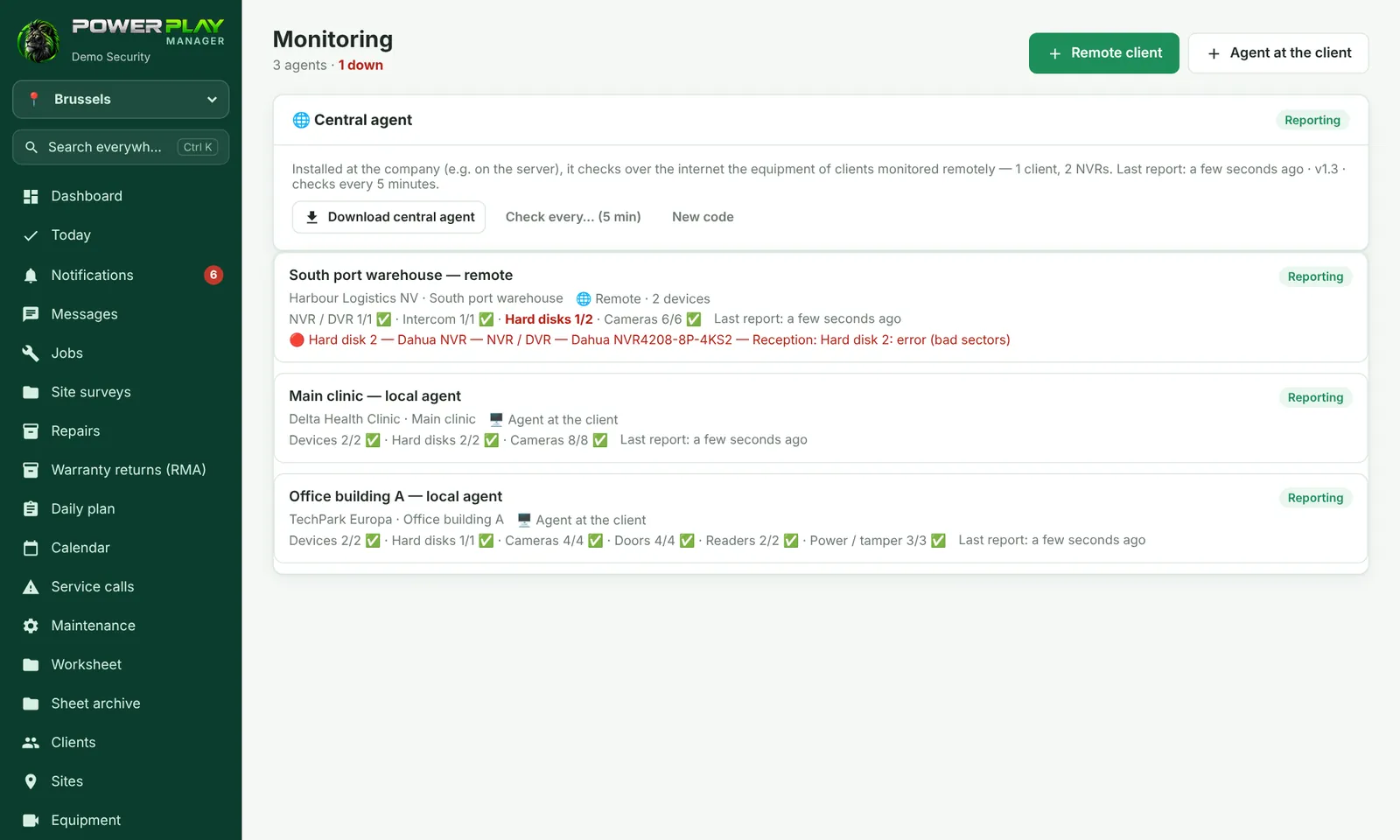
The app checks clients' NVRs, cameras, hard drives and other equipment by itself every few minutes; it tells you when something goes down and can open the service call by itself.
TechnicianOffice / administratorSuper AdminOptional module
Often the client only finds out that a camera stopped recording when they need the footage. With Monitoring, the app checks clients' equipment by itself and tells you first: a camera down, a hard drive with problems, an NVR that no longer responds.
How it works, in short
The checking is done by a small program called an agent. There are two ways to use it:
| Way | How it works |
|---|---|
| 🖥️ Agent at the client | the agent is installed on a Windows computer that stays on, or on a Raspberry Pi, in the client's network. It checks the equipment there and sends the status to the app. |
| 🌐 Remote client | nothing is installed at the client. A single agent, installed at your company (the central agent), checks clients' NVRs over the internet, at their public address. |
For Hikvision and Dahua NVRs and DVRs you also see the hard drives and the cameras, and for Hikvision / Dahua access control also the doors, readers and power supply. For other equipment (alarm, intercom, router, UPS, server) the app checks whether it responds or not.
What happens when something goes down
- The agent notices that a device no longer responds (e.g. the “Gate 2” camera).
- You get a notification right away, and what is down shows in red in the list.
- If “Open a service call automatically” is ticked for the client, and the device doesn't recover within the chosen number of minutes, a service call is opened automatically for the client, linked to the device.
- When the device comes back, you get a “back online” notification.
If the agent itself stops sending anything (usually the client's internet or power is down), you see “Agent not reporting”.
How to add a remote client
- Open Monitoring and tap Remote client.
- Choose the client and the site. If you want, tick Open a service call automatically if equipment does not recover and enter after how many minutes.
- Save, then on the client's page tap Add equipment.
- Choose What equipment it is, enter the Address (public IP or DDNS) and the Port forwarded in the router (0 = ping only).
- For an NVR, choose the Brand and enter the username and password. The password is stored encrypted and is never shown again.
- Tap Add equipment. The central agent checks it on its next round.
For Agent at the client: tap Agent at the client, choose the client, then Download agent and follow the steps shown on screen. The client's equipment must have the IP address filled in under Equipment.
A monitored client's page
- What it monitors — each device, with its status and since when it has been down or working; a link to the open service call.
- Settings — how often it is checked (in minutes), whether the automatic service call is on, the last report, the responsible technicians.
- What happened — the history of outages and recoveries.
Who can see and who can change
| Who | What they can do |
|---|---|
| Office / Super Admin | sees everything, adds clients and agents, changes settings, deletes |
| Dispatcher | by default can only view |
| Technician responsible for the client | sees their client and adds / edits its equipment; the responsible technicians are chosen by the Super Admin |
| Technician with “Can add clients to Monitoring (remote)” ticked | can add a new client to monitoring (this box is ticked by the Super Admin) |
Other technicians don't see the Monitoring menu. They find out about an outage from the automatically opened service call, when it is assigned to them.
Frequently asked questions
Does the client have to leave a computer on?
Only with “Agent at the client”. With “Remote client” nothing is installed at the client; the NVR just needs to be reachable over the internet, on the forwarded port.
I get too many notifications for short outages.
A notification comes for every outage, but the automatic service call opens only if the device doesn't recover within the chosen minutes. Increase the number of minutes under “Edit”.
Can the client see the monitoring?
If they have an account in the client portal, they see only the status of their own systems, without addresses or passwords.