

Document letterhead
Choose what appears at the top and bottom of every PDF the app makes (worksheets, quotes, invoices, contracts, reports): logo, company details, the unified letterhead and the watermark.
Super Admin
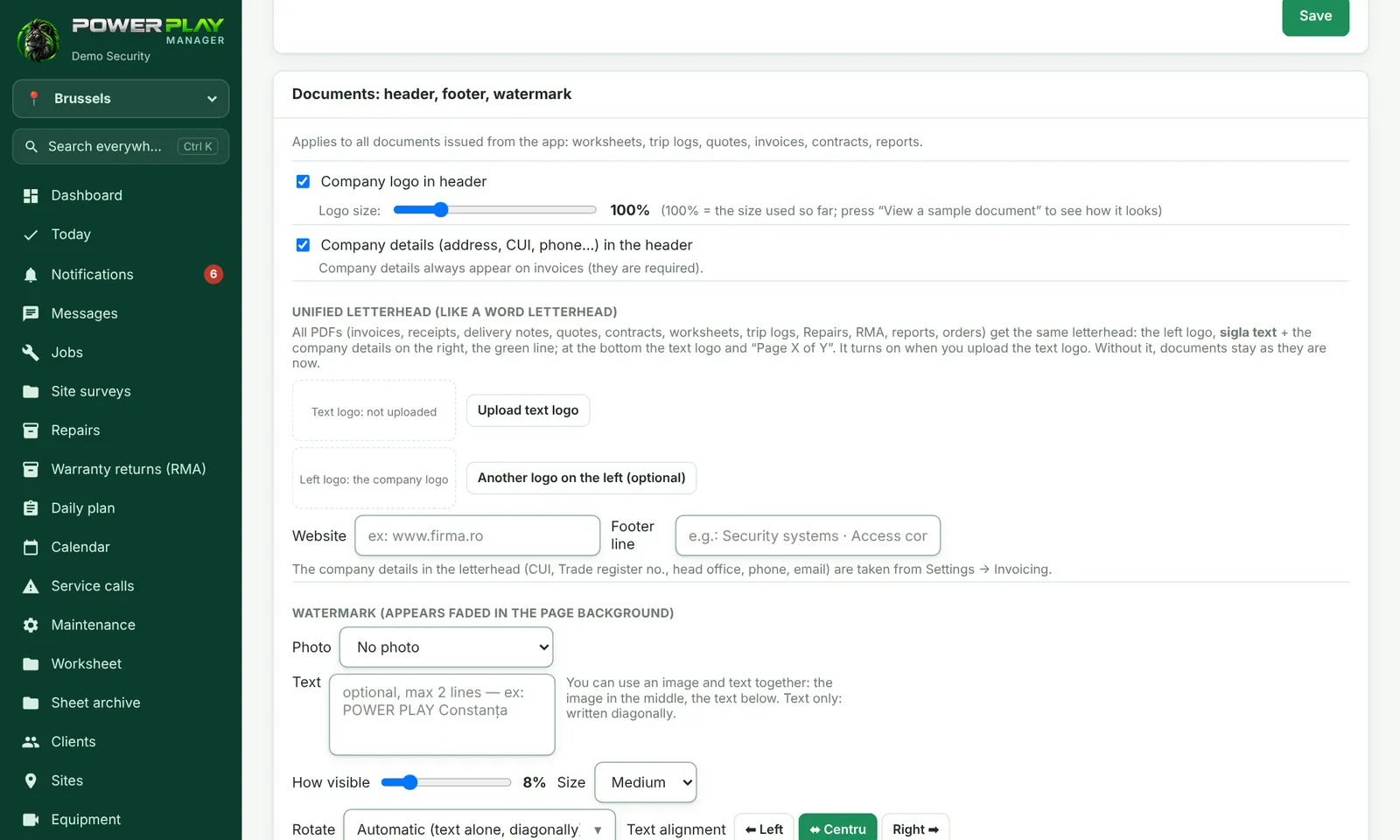
All documents issued from the app have the same look: worksheets, trip logs, quotes, invoices, receipts, delivery notes, contracts, reports. You set this up once, in Company settings, on the Documents: header, footer, watermark card.
Logo and company details in the header
- Open Company settings and scroll down to Documents: header, footer, watermark.
- Tick Company logo in header and adjust the size with the Logo size slider.
- Tick Company details (address, CUI, phone…) in the header if you want them on all documents. On invoices they always appear, because they are required.
- Tap Save.
You upload the logo higher up on the page, with Change logo. You write the bottom text in Text at the bottom of the sheet (footer).
Unified letterhead (like a Word letterhead)
The unified letterhead puts this on every PDF: a logo on the left, the text logo and company details on the right, a colored line, and at the bottom the text logo and "Page X of Y".
- In the Unified letterhead (like a Word letterhead) section, tap Upload text logo and choose the image with your company name written on it.
- Optional: tap Another logo on the left (optional). If you upload nothing, the company logo stays on the left.
- Tick Use the unified letterhead on documents.
- Fill in Website and Footer line (e.g. Security systems · Access control).
- Tap Save.
Watermark (in the page background)
- Under Photo choose: No photo, Company logo or A photo uploaded by me.
- Under Text you can write up to 2 lines. Text only = written diagonally.
- Adjust How visible, Size, Rotate and Text alignment.
- Tick the documents it should appear on.
Check before you save
- At the bottom of the card, choose the type of document from the list (e.g. invoice, worksheet).
- Tap 👁 See a sample document.
- If it looks good, tap Save.
Frequently asked questions
I uploaded the text logo, but documents look the same.
Make sure Use the unified letterhead on documents is ticked and tap Save. Without a text logo, documents stay as they were.
The logo is too big on the page.
Make it smaller with the Logo size slider (100% = normal size) and check with See a sample document.
Can one branch have a different letterhead?
Yes, if the branch is an independent work point. Select it at the top of the app, open Company settings and tap Make them its own under How documents look (letterhead, logos, watermark).