

Maintenance
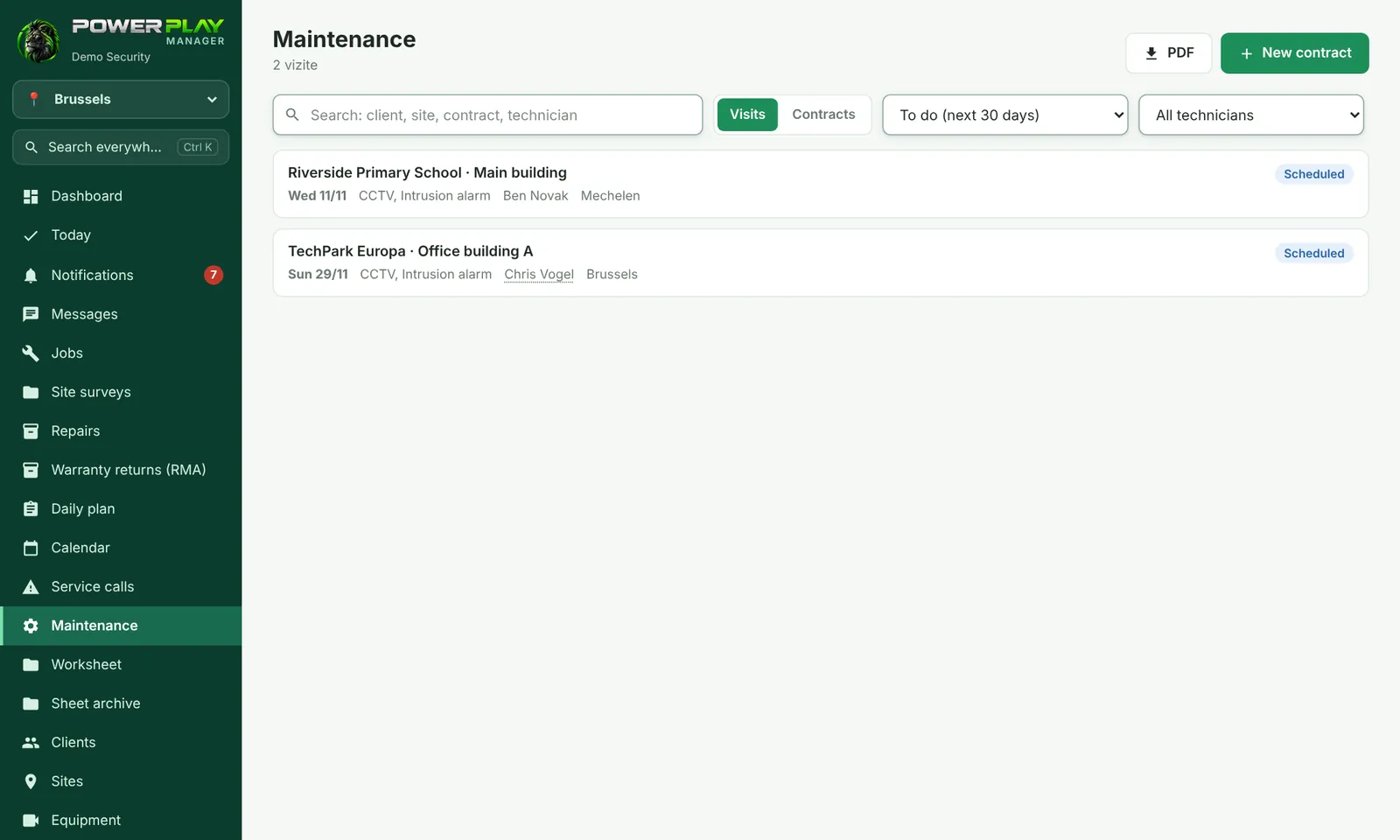
Maintenance contracts with regular check-ups: the app schedules the visits by itself, with the checklist, and reminds you in advance.
TechnicianOffice / administratorSuper Admin
For clients with a maintenance contract, the office creates the contract once, and the app creates all the visits for the whole period by itself. Each visit comes with the checklist for the systems in the contract.
The contract (office)
- Open Maintenance and tap New contract.
- Choose Client and Site (or the whole client).
- Tick Which systems are covered by maintenance.
- Choose How often: Monthly, Every 2 months, Quarterly, Every 4 months, Every 6 months or Yearly.
- Choose Lead and Team, then First visit / contract start and Contract end.
- Optional: Response time for service calls (hours), Alerts before visit (days), Contract no. (optional).
- Tap Save — the app tells you how many visits it has scheduled.
Reminders: who finds out and when
- The lead, the visit team and the person who set up the contract get a notification before each visit — by default 7 days and 1 day before.
- The days can be changed for each contract (Alerts before visit (days), e.g. 14, 7, 1) or for the whole company from Who receives notifications.
- Today's visits and late visits appear on the technician's Today page, under “What I need to sort out”.
- Contracts expiring within 30 days are shown in the Contracts tab, with the “Expires in 30 days” filter.
The visit (technician)
- Open the visit from Today or from Maintenance (filter: To do, Everything to do, Done).
- Under Checks, tap OK, Problem or Not applicable for each item. You can add your own check.
- Take photos of the equipment and of any problems found.
- Write in Visit notes.
- Tap Worksheet for the client signature.
- Tap ✓ End the visit.
If you found problems, after you end the visit the button Open service call for issues appears — the service call form opens, already filled in with the client, the site and the problems found. A visit's statuses are Scheduled, Late, Done and Cancelled.
On the visit the office also has Date / technician (move the visit or change the person), Cancel visit and Reopen.
Frequently asked questions
Can technicians see the contracts?
No. Technicians only see the visits they are assigned to. The Contracts tab and the New contract button are for the office only.
Can the client get a reminder too?
Yes, if your company has the optional Messages to clients module — that's where client reminders are set up, for example about the next day's visit.
How do I renew a contract that is expiring?
If your company has the Contracts & SLA module, the Renew button appears on the contract page: it makes a new contract with the same team and, optionally, with an indexed price.