

Contracts & SLA
Track the response times promised to clients, maintenance contracts that are about to expire and price indexation for monthly billed services.
Office / administratorSuper AdminOptional module
The Contracts & SLA page (the Administration section of the menu) is an optional module, turned on on request, and only administrators and the Super Admin can see it. It has four tabs: ⏰ SLA deadlines, 📄 Expiring contracts, 📈 Price indexation and 🗂️ History.
Where the response time comes from
- On a maintenance contract (the Maintenance page), fill in Response time for service calls (hours), for example 24.
- On a new service call, the Reply deadline (hours) field is taken from the contract if you leave it empty; you can also type it in by hand.
- The app calculates the time by which you must arrive. The deadline is met when the technician has arrived at the client or the service call is no longer open.
The SLA deadlines tab
You see the open service calls that have a deadline, with their status: On time, Due soon or Overdue, how much time is left and the technician (or "no technician", in red). At the top it shows how many service calls were on time and how many were late this month. Tap a row to open the service call.
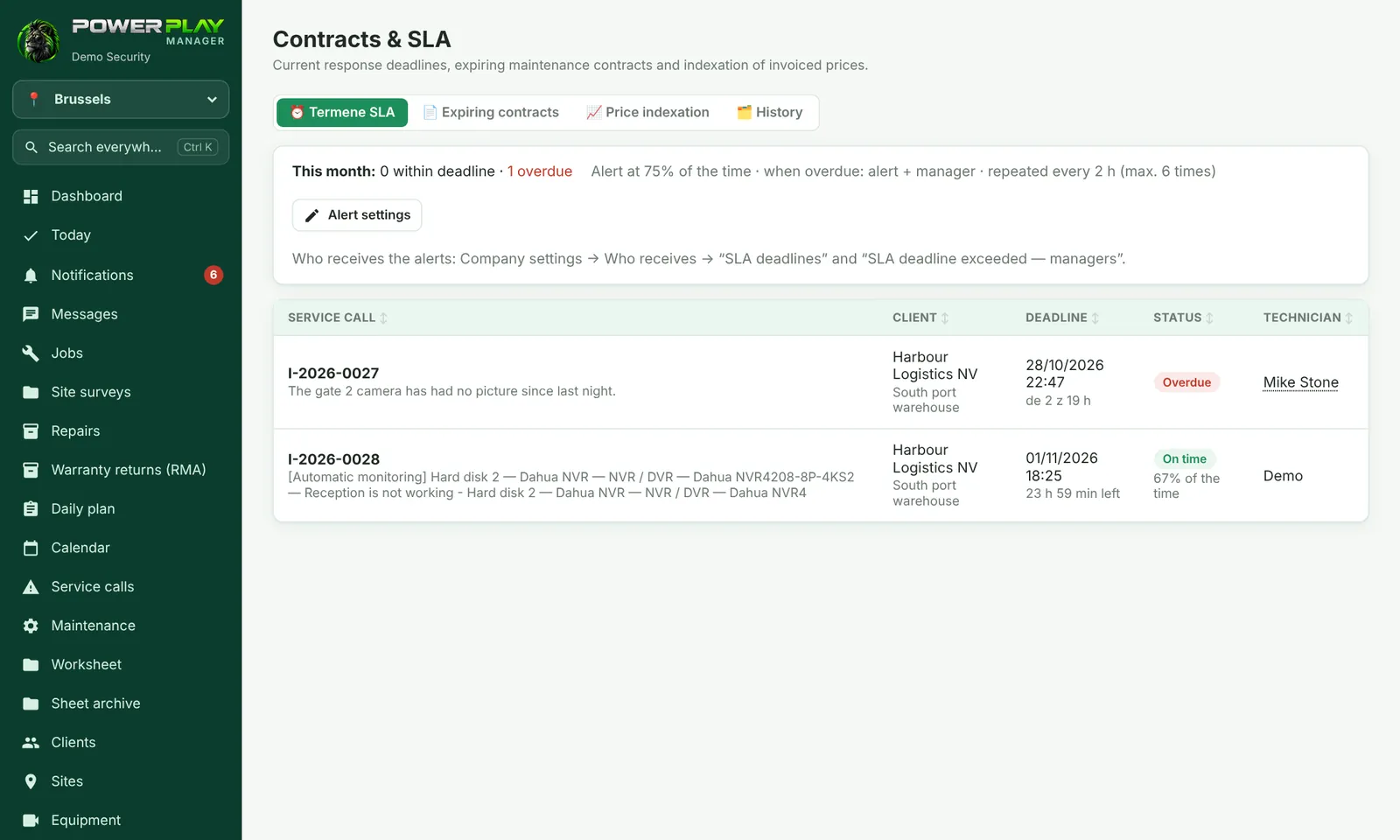
- A "deadline approaching" alert when part of the time has passed (75% by default).
- When the deadline is exceeded, an alert also goes to the managers, and then repeats every few hours (by default every 2 hours, at most 6 times).
- The Super Admin changes the percentage and the repeats with Alert settings.
- Who receives the alerts is chosen in Company settings → Who receives notifications, under Service call deadline (SLA) and Service call deadline EXCEEDED — escalation (managers).
Expiring contracts and renewal
- Open the 📄 Expiring contracts tab.
- Choose the period (30, 90, 180, 365 days or all). Recently expired, not renewed contracts also appear.
- On the contract you want, tap Renew.
- Check the start and end dates (suggested automatically), the new contract number and, if you want, Price indexation (%) and the Rounding.
- Tap Renew. A new contract is created, with the same team, visits and response time, and the app prepares an email for the client.
Price indexation
The 📈 Price indexation tab shows the services billed monthly (subscriptions, maintenance), with their current price.
- Enter the percentage, for example 5 or 7.5.
- Choose From month (when it applies) and the Rounding (to the cent, to the whole unit, to 10).
- Write the reason, for example "Inflation indexation"; it appears in the history.
- Tick the services (or All) and tap See the new prices.
- Check the list by client and tap Apply indexation.
- The list of prepared emails opens, one per client. Open them, read them and send them yourself.
In 🗂️ History you see the indexations made, how many emails were sent (the ✉️ Emails button), and you can cancel an indexation that hasn't taken effect yet.
Frequently asked questions
If I cancel an indexation, are the emails sent to clients withdrawn?
No. The prices stay as they are now, but emails already sent can't be withdrawn.
Can I get the alert for expiring contracts by email?
Yes. In Company settings → Who receives notifications, under Maintenance contracts expiring (days before) + price indexations, choose the people and how many days before (60, 30 and 7 days by default).