

Sales
Follow potential clients on a board with stages, from the first phone call to the job, with calls and tasks to do.
TechnicianOffice / administratorSuper AdminOptional module
The Sales menu (the Money group) holds potential clients: people or companies who asked you for something but are not clients yet. It is an optional module, turned on on request. Administrators see all potential clients; other users with access see only those they are responsible for or that they added.
The page has three tabs: Sales board, To do and Figures.
Add a potential client
- Tap New potential client.
- Under What the client wants, briefly describe the request, for example “Warehouse hall CCTV system”.
- Fill in what you know: company or person, contact person, phone, email, town.
- Choose Where it came from (Phone, Website, Referral, Facebook / Instagram, Google, Existing client, Fair / event, Other).
- Enter the Estimated value (excl. VAT, e.g. 4,500 EUR) and the date you expect it to close.
- Choose the Lead (person responsible) and the Stage, then save.
The sales board
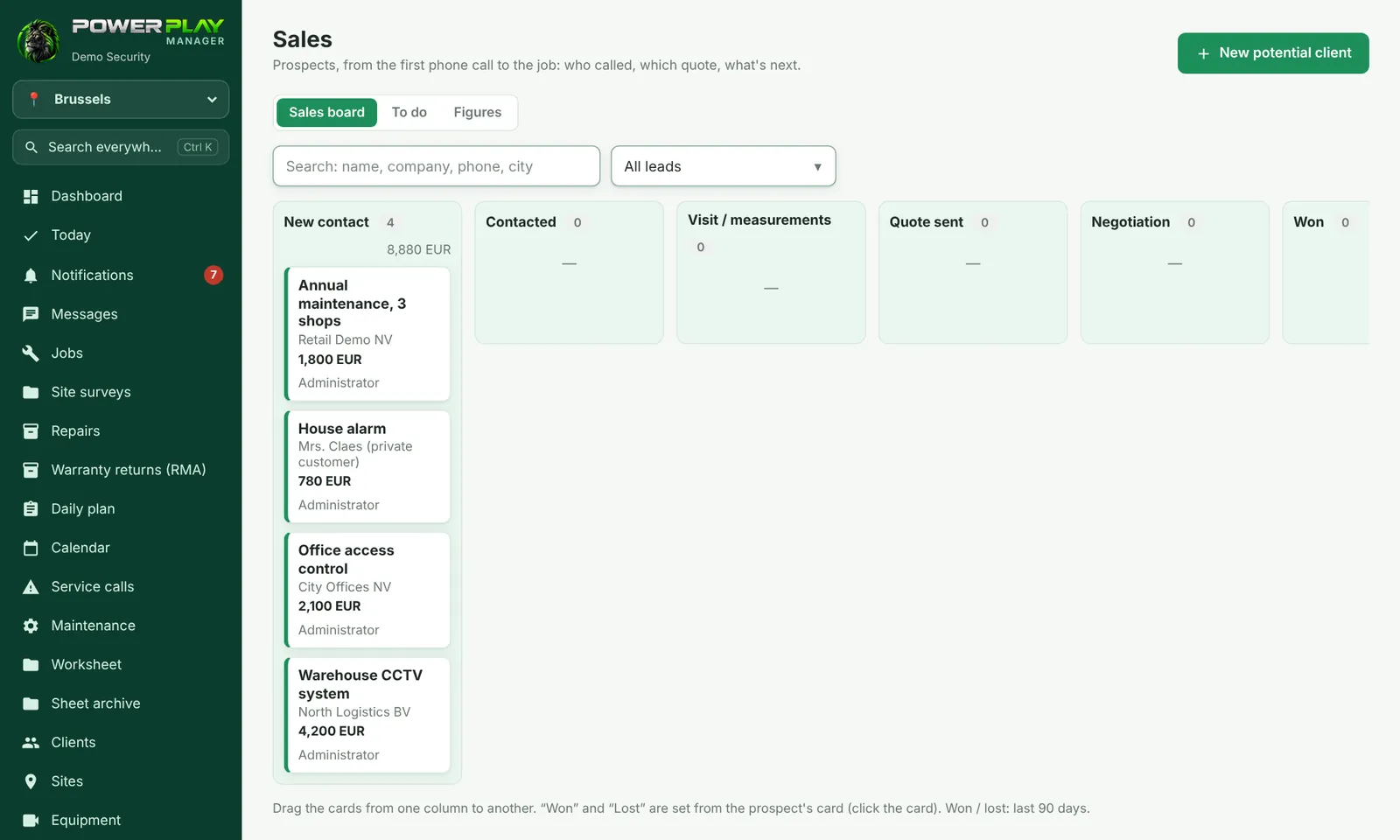
Each potential client is a card, placed in the column for its stage: New contact, Contacted, Visit / measurements, Quote sent, Negotiation, Won, Lost. At the top of each column you see how many there are and their total value.
- On a computer, drag the card with the mouse to the next column as the discussion moves forward.
- A card that has been in the same stage for 14 days or more gets a label with the number of days.
- The card also shows the next thing to do, with its date; in red if it is late.
- At the top you can search by name, company, phone or town, and filter by person responsible (Mine only).
The potential client's page: history and to-do
- Tap a card to open its page.
- Under History and to-do, choose the type: Call, Meeting / visit, Email, Message (WhatsApp / SMS), To do or Note.
- Write what was discussed or what needs to be done.
- If you set a deadline (DD/MM/YYYY and, optionally, the time), the item goes into To do and onto the Today page; without a deadline it is recorded as done.
- Choose who handles it and tap Add.
- When it's done, tap Done.
On the page you also have Edit, I'm making a quote (opens a new quote) and Delete.
Won or lost
- On the page, tap 🎉 Won.
- Choose an existing client, or leave New client so the app creates it from the details here.
- Leave Also create the job (as “Scheduled”, unassigned) ticked if you want a new job, and check its title.
- Tap Done.
If the deal doesn't happen, tap Lost and write the reason (for example “price too high”). The reasons then appear under Figures. A closed potential client can be reopened with Reopen.
To do and Figures
- To do: calls and tasks with a deadline, in groups: Late, Today, Next. Tick the box when you finish. Administrators can switch between Mine and Everyone's.
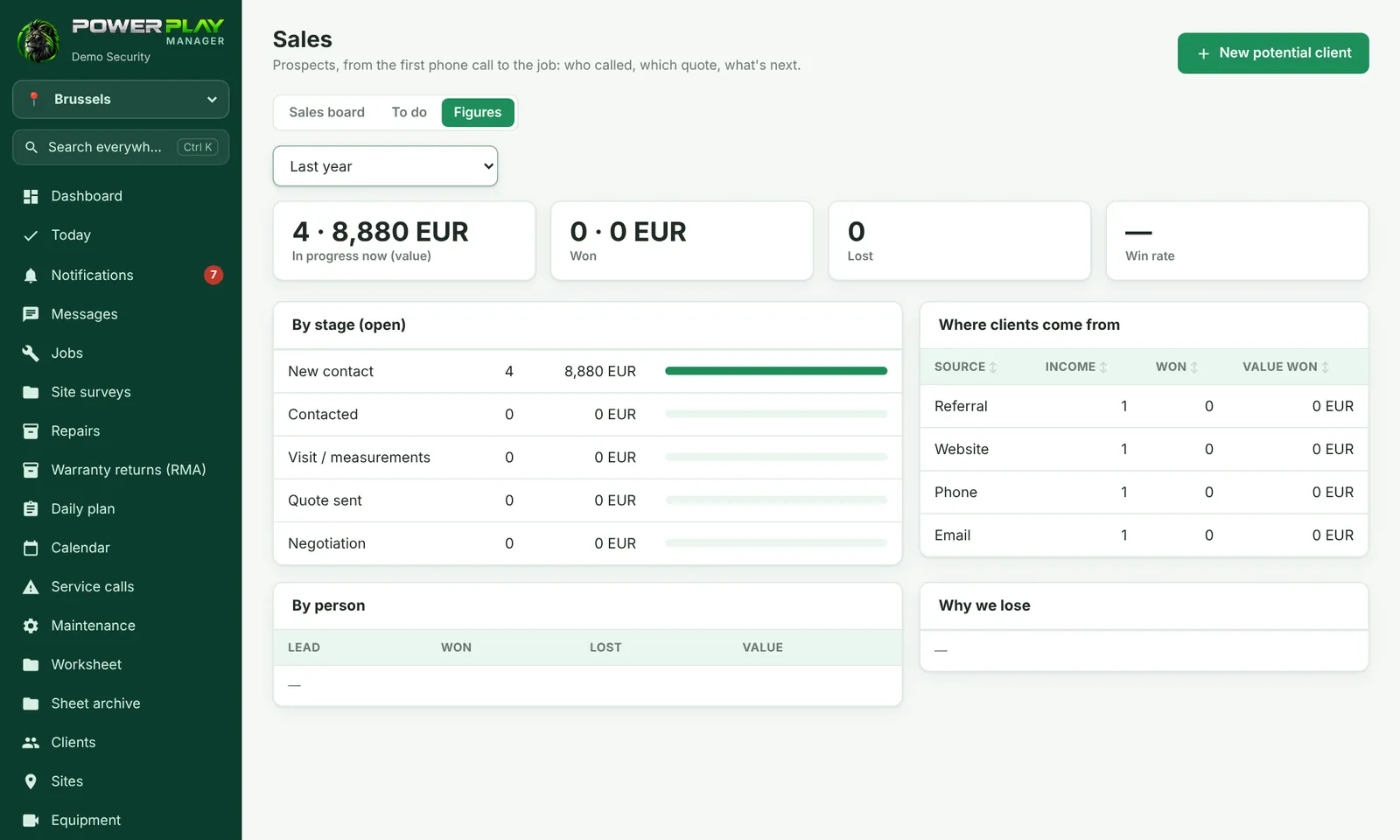
- Figures: how many opportunities are open and their value, how many were won and lost, the win rate, by stage, where clients come from, by person, and why you lose. Choose the period: last 3 months, 6 months, last year or last 2 years.
Frequently asked questions
I don't see the Sales menu. Why?
The module is optional. If your company has turned it on, the Super Admin chooses in Company settings which roles see it.
Can I drag a card straight into “Won”?
Not by dragging. Won and Lost are chosen from the potential client's page, so you can pick the client, the job or the reason.
Can I use the board on a phone?
You can open the pages and add calls or tasks; moving cards by dragging is easier on a computer.