

Site surveys
The site survey sheet: record what you found when visiting the client, before the quote or job — what the client wants, measurements, estimated materials and photos.
TechnicianOffice / administratorSuper Admin
When a client asks for a new system, you usually go and see the place first. The Site survey sheet collects everything you learn on the visit, so the office can make the quote or job without asking twice. The menu is called Site surveys.
How to create a new sheet
New sheets are created by administrators and the Super Admin.
- Open Site surveys and tap New sheet.
- Choose The client from the list. If it's a new client, leave "new client" and write the name in New client (if not in the list).
- Choose the Site (if any) and the Visit date. The address fills in automatically from the client or site.
- Write In short: what needs to be done (e.g. "8-camera CCTV system for warehouse") and the On-site contact person (name, phone).
- Under Can fill in (go on site) tick the people doing the visit. Under View only tick who just follows the sheet.
- Tap Create sheet.
What you fill in on the visit
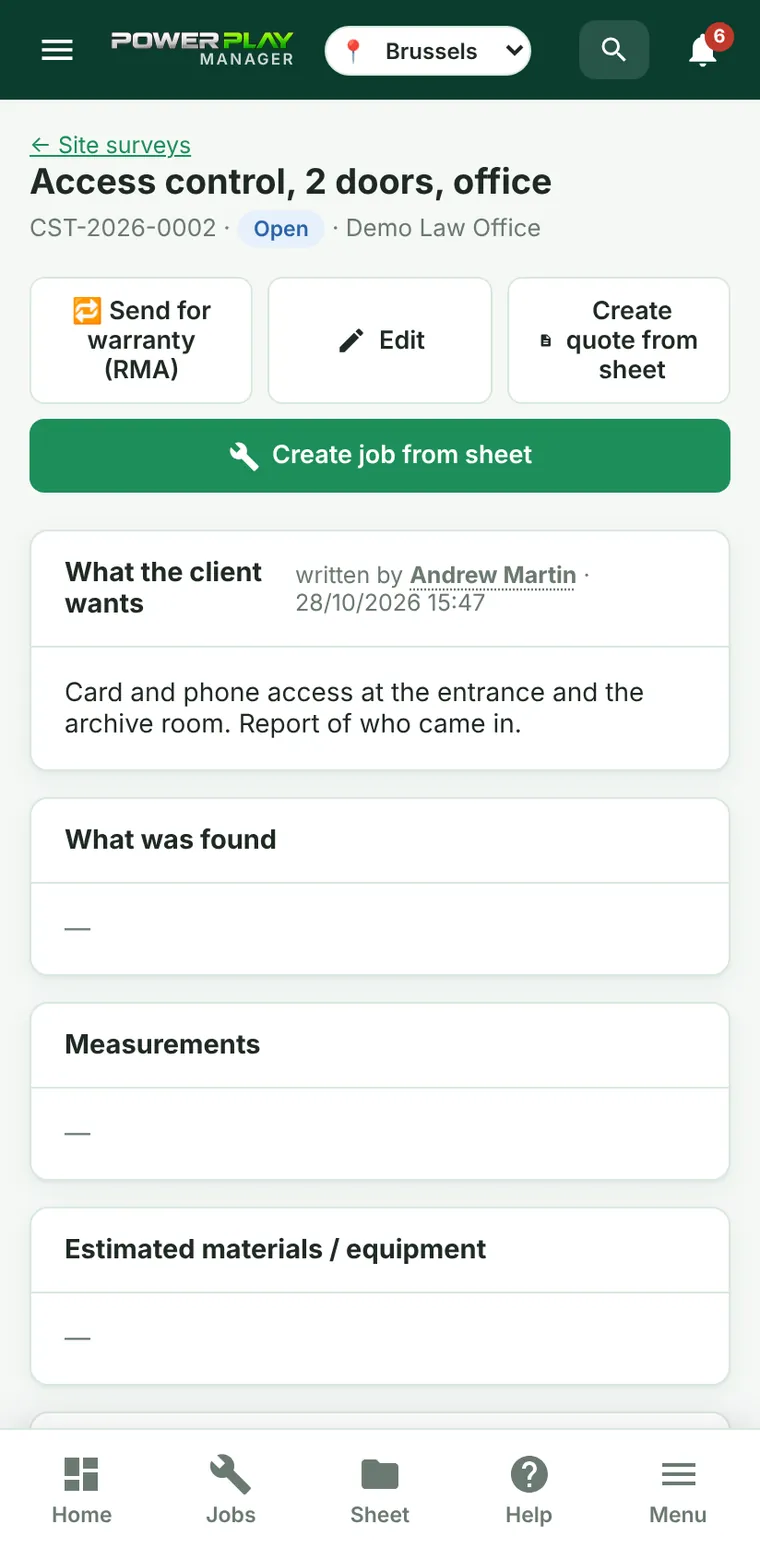
The sheet has five text boxes, each showing the name of the person who last wrote in it:
- What the client wants
- What was found
- Measurements
- Estimated materials / equipment
- Notes (access, hours, risks)
- Open the sheet and tap Fill in (or Edit, if you created it).
- Write what you found in the boxes and tap Save.
- Add photos on the Photos card: on a phone with 📷 Camera or 🖼 Gallery.
Turn the sheet into a quote or a job
- Create quote from sheet — creates a draft quote for the client (and the new client too, if needed), with the sheet's text at the top. Then you add the products and prices.
- Create job from sheet — creates the job with all the text and all the photos. The people marked "can fill in" join the team, and the sheet is closed.
If nothing will be done, tap Cancel (no longer happening). A cancelled sheet can be reopened with Reopen sheet. Delete sheet deletes it permanently, photos included; any quote or job made from it stays.
Who sees it and who can do what
| Who | What they can do |
|---|---|
| Super Admin | sees and does anything on all sheets |
| The person who created the sheet | fills it in, changes the people, makes a quote / job, cancels, deletes |
| People marked "can fill in" | see the sheet, write in it and add photos |
| People marked "view only" | see the sheet, without changing it |
The list has the filters Open, With quote, With job, Cancelled and All. Each sheet also has its own conversation, where the team can talk about it.
Frequently asked questions
A technician can't see the sheet they need to fill in. Why?
Technicians only see the sheets they were added to. Ask the person who created the sheet to tick you under Can fill in (go on site).
Can I make a sheet for a client who isn't in the app yet?
Yes. Write the name under New client (if not in the list). When you make the quote or job from the sheet, the client is created automatically.
Do technicians see the "Create quote" and "Create job" buttons?
No. They only appear to the administrator who created the sheet and to the Super Admin.