

Contracts
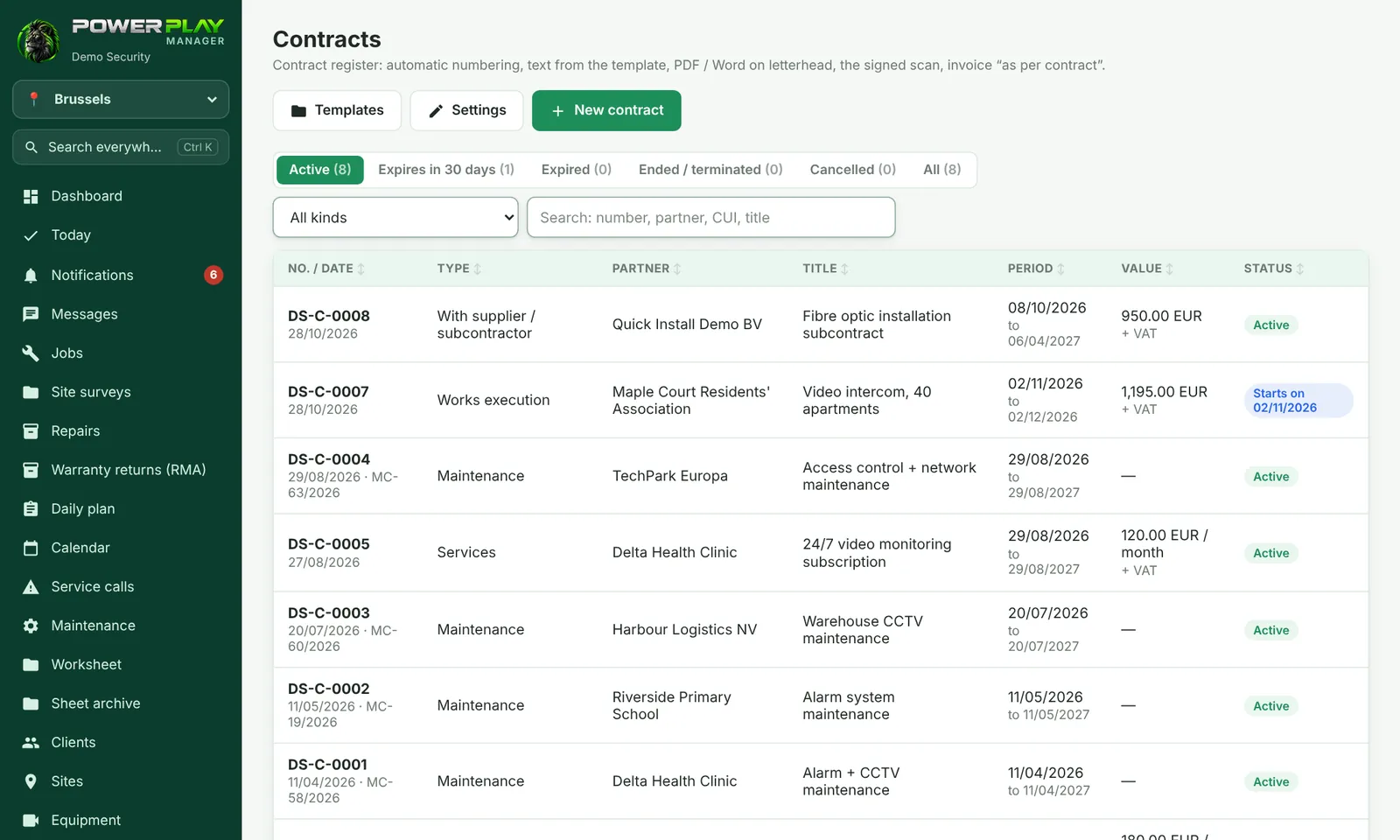
The company's contract register: automatic numbering, text from a template, PDF and Word on your letterhead, the signed scan, and invoicing "as per contract", including monthly.
Office / administratorSuper AdminOptional module
The Contracts menu ("Money" group) is an optional module, turned on on request, and only administrators and the Super Admin can see it. Maintenance contracts made on the Maintenance page appear here automatically.
The contract types are: Services, Works execution, Equipment sale, Maintenance and With supplier / subcontractor. Maintenance contracts are not made here, but on the Maintenance page (that's also where the visits are generated).
Register a new contract
- Tap New contract. The window shows the number it will get.
- Choose the Contract type and the Contract date.
- Choose The client (for supplier contracts, choose the supplier). The partner details fill in automatically from the client record.
- Write the Title (short), for example "CCTV monitoring subscription", and the Subject of the contract.
- Fill in the period (From, Until), the Value, the Currency, whether the value is total (one-off) or per month (subscription), and whether it includes VAT or not.
- Under Partner details (appear in the contract), check the tax ID, the registered address and who signs.
- Tap Register the contract. The text is created automatically from the template of the chosen type.
- The currency is suggested automatically: the company's currency. You can also choose EUR or USD.
- A contract can also be made from a quote: the Contract button on the quote fills in the details.
- The Internal note does not appear in the contract.
The text, PDF, Word and the signed scan
- PDF and Word create the contract on the company letterhead, ready to print.
- Edit text lets you change the text for this contract only. ↻ Rebuild from template (with current data) rebuilds it with the current details (anything you wrote by hand is lost).
- Under Signed documents and annexes, tap Upload and choose what it is: the signed contract (scan), addendum, annex or other document. PDF, photos and Word files work.
- Templates (at the top of the page): each contract type has its own template. Fields in curly brackets fill in automatically. Revert to the original template undoes your changes.
Invoicing from the contract
The Invoicing card appears if the company also has the Invoices module, and the contract has a client and is active.
- Tap 🧾 Invoice from contract.
- Check the text and the amount; the app automatically adds "as per contract no. … of …".
- Tap Create the draft invoice, then check and issue the draft from Invoices.
For a subscription (value per month), tap 🔁 Add to “Invoice the month” and choose how often. From then on, the contract appears under Invoices → Invoice the month. The card also shows the invoices made from the contract.
Contract statuses
The tabs at the top: Active, Expires in 30 days, Expired, Ended / terminated, Cancelled, All. You can also filter by type or search by number, partner, tax ID or title.
- End / terminate: the contract ended normally or was stopped early.
- Cancel: contracts are not deleted; the number stays used in the register.
- Reactivate brings back an ended or cancelled contract.
Frequently asked questions
Where do I change the contract series and numbering?
The Settings button on the Contracts page (Super Admin only): the series, the starting number, how many digits, whether it restarts from 1 every year, who signs for the company, and the usual payment term and warranty.
Where do the company details (tax ID, head office, IBAN) come from?
From Company settings, the card with the invoicing details.
Can I delete a wrong contract?
No. Cancel it with Cancel (and write the reason); the number stays in the register and is never given to another contract.