

Messages to clients
Let the client know the technician is on the way, and automatically send reminders about tomorrow's visit, invoices that are due or overdue, and contracts that are expiring.
TechnicianOffice / administratorSuper AdminOptional module
The Messages to clients page (the “Administration” section of the menu) is an optional module, turned on on request. Settings are made by administrators and the Super Admin; the 🚗 I'm on my way button is used by technicians in the field.
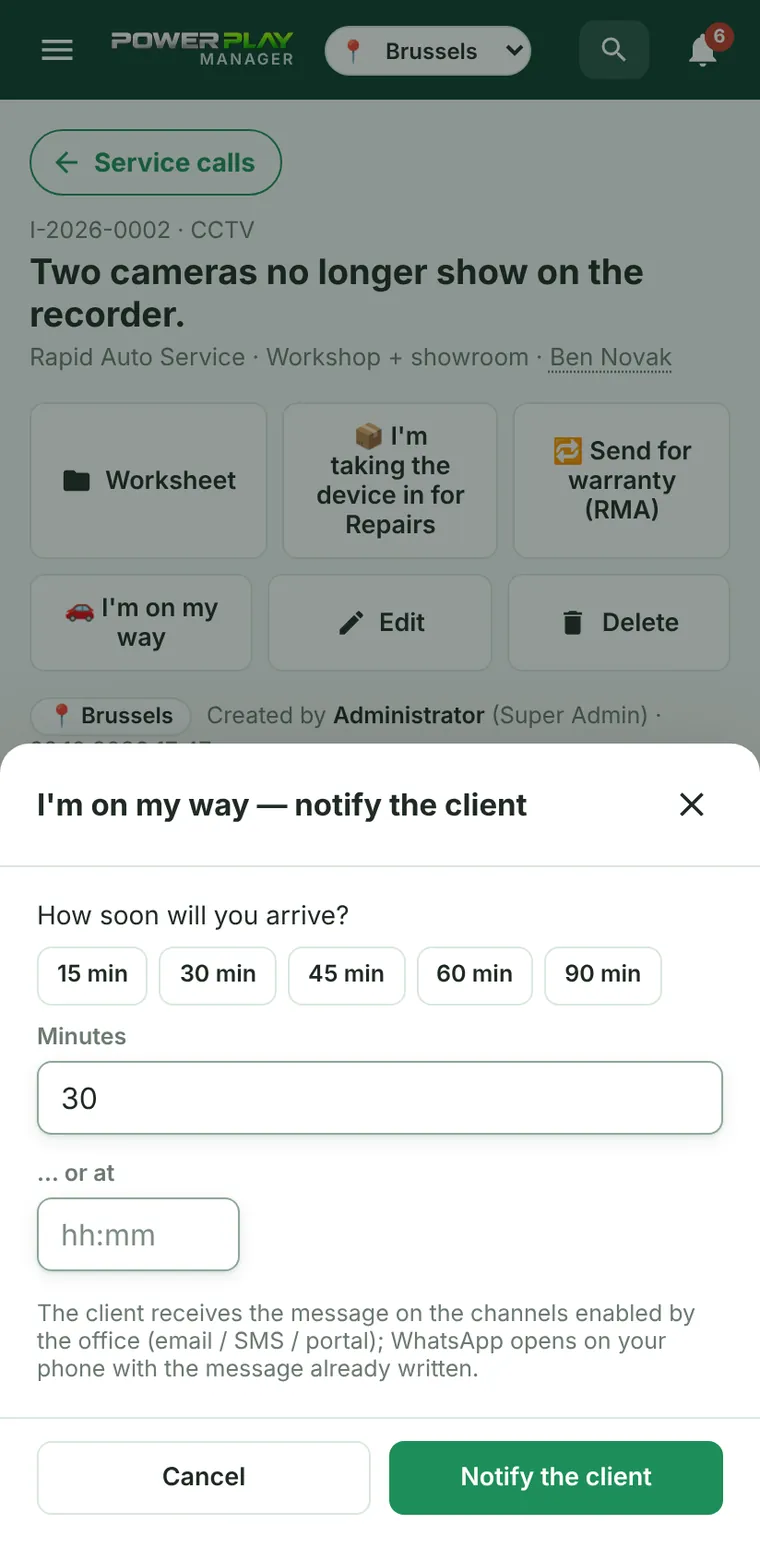
“I'm on my way” — the technician tells the client
- Open the service call, the maintenance visit or the job.
- Tap 🚗 I'm on my way.
- Choose how soon you'll arrive (15, 30, 45, 60 or 90 min) or enter the time.
- Tap Notify the client.
- The app shows which channels the message went out on. If WhatsApp is turned on, tap 💬 Also send on WhatsApp: the message opens ready-written on your phone.
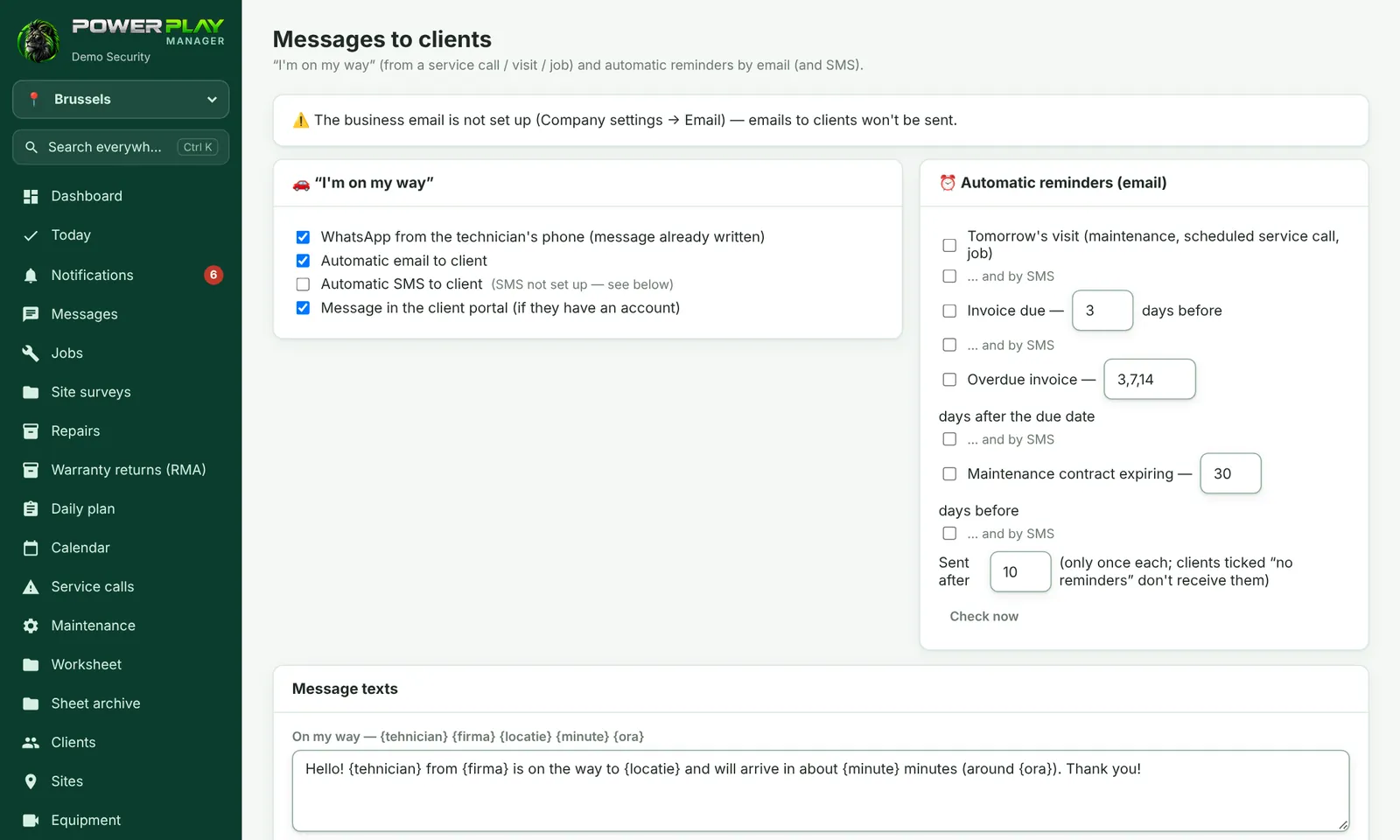
Settings: channels and automatic reminders
On the Messages to clients page the office chooses:
- Under 🚗 “I'm on my way”: WhatsApp from the technician's phone, automatic email, automatic SMS and a message in the client portal (if the client has an account).
- Under ⏰ Automatic reminders (email): tomorrow's visit (maintenance, scheduled service call, job); invoice nearly due, how many days before; overdue invoice, how many days after the due date (for example 3,7,14); maintenance contract expiring, how many days before.
- Each reminder can also go out … and by SMS.
- Sent after: the time from which reminders are sent. Each reminder goes out only once.
- Check now sends right away whatever is due to be sent.
- Tick what you want clients to receive.
- Under “Message texts” adjust the texts. Words in curly brackets, for example {tehnician}, {data}, {factura}, {suma}, are filled in automatically.
- Tap Save.
SMS and message history
- SMS messages are sent through a paid provider. You create the account with the provider yourself, and its details are entered only by the Super Admin, on the “📱 SMS” card. Use Send a test SMS to check that it works.
- Under What was sent you see each message: when, the client, what, through which channel and the status (sent, opened in WhatsApp, or error, with the reason).
Frequently asked questions
A client doesn't want to receive reminders. What do I do?
Open the client record and, on the “Messages to client” card, tick No automatic reminders for this client.
Why didn't the client get the email?
Check under What was sent whether there is an error. The most common causes: the business email isn't set up, or the client has no email address in their record.
The technician doesn't see the “I'm on my way” button. Why?
The button only appears if the Messages to clients module is turned on for your company.