

Notifications
Find out right away when you're put on a job, the plan changes, you get a question or a receipt of yours is reimbursed — in the app, on your phone and by email.
TechnicianOffice / administratorSuper Admin
When you're made lead or put on the team (on a job, service call, maintenance visit or a row in the plan), when the date or time changes, when you get a question or an answer, when a tool is handed over to you or a receipt of yours is reimbursed — you get a notification. One click on it takes you straight to that record. The person who makes the change does not get a notification about their own action.
Where notifications arrive
| Channel | How it works |
|---|---|
| The Notifications menu (the bell) | Your list, with the number of unread ones next to the menu. Unread ones are highlighted; Mark all as read clears them. |
| On the phone screen | A message on the screen even when the app is closed. Each person turns it on once, on each phone (see below). |
| To the address in your account — for everyone, or only for those who haven't turned on phone notifications, as the company chooses. Chat messages are not sent by email. | |
| After saving a change, the office may see the question “Also notify on WhatsApp?”, with the message ready-written for each person. |
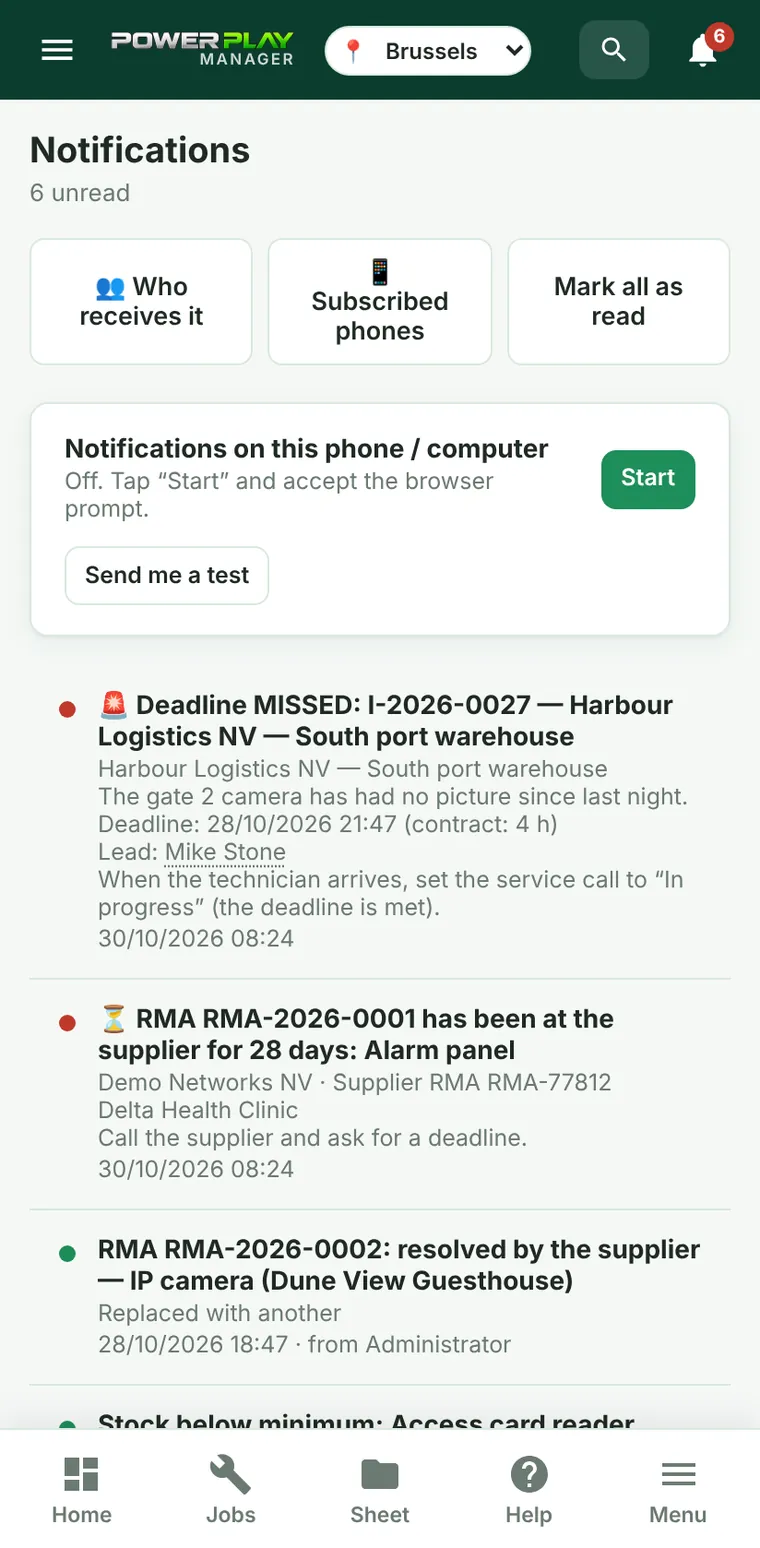
Turn on notifications on your phone
- Open the app on your phone and go to Notifications.
- Tap Start and accept the phone's question (Allow).
- Tap Send me a test — a message should appear on your screen.
What kinds of notifications there are
- About you: you're added to or removed from a job, service call, visit or plan row; the date, time or urgency changed; the job stage or service call status changed; a question addressed to you and its answers; reimbursement of your materials; inventory items handed over to you.
- For the office: materials bought in the field (receipts), problems, suggestions and complaints from the field, maintenance due, expiring contracts, vehicle alerts (inspection, insurance, road vignette, servicing), questions for the administrator, inventory, stock below minimum.
- Service call response times (SLA): deadline about to expire or missed — if your company has the Contracts & SLA module.
- Messages: new chat messages and messages that require confirmation (these arrive as urgent).
Some notifications depend on the modules your company uses (e.g. monitoring, the client portal, e-Factura, supplier warranty returns).
Who receives notifications (office)
Administrators see the 👥 Who receives it button. For each kind of notification you tick: the people automatically involved (e.g. the responsible technician, the vehicle's driver, the person who created the job), all administrators and/or all dispatchers, people chosen by name, and email addresses typed in by hand (e.g. the accountant). For maintenance and contracts you also choose how many days before the alerts come. These are changed by the Super Admin and the administrators they choose; everyone else can only view them.
The Super Admin also has the 📱 Subscribed phones button — it shows which phones have notifications turned on.
Frequently asked questions
I turned on notifications but get nothing on my phone. What should I check?
Tap Send me a test. If nothing appears, check in the phone settings that the app or browser is allowed to send notifications. On iPhone, the app must be opened from the home screen, not from Safari. Notifications are turned on separately on each phone.
On iPhone I tapped “Don't Allow” by mistake. What do I do?
Go to Settings → Notifications → Power Play and turn on “Allow Notifications”.
I get too many emails. Can they be stopped?
The company can choose to send emails only to those who haven't turned on phone notifications. Turn them on on your phone and talk to the office about the setting.