

Fleet
The company vehicles, their deadlines with alerts (inspection, insurance, services), services and repairs, and the trip log with each driver's trips.
TechnicianOffice / administratorSuper AdminOptional module
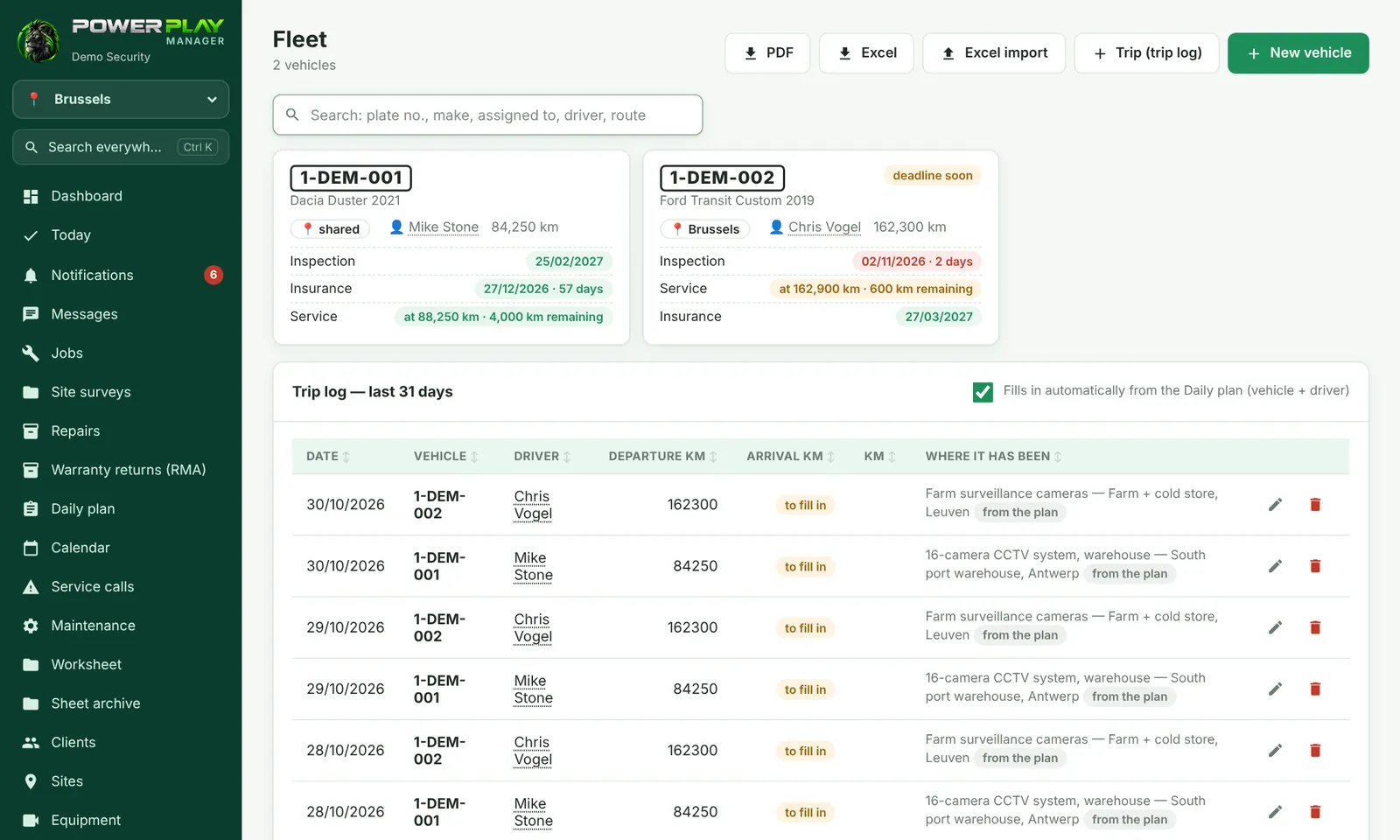
The Fleet menu shows each vehicle as a card: registration number, who it's assigned to, mileage and the nearest deadlines. Vehicles and deadlines are managed by the office and the dispatcher; each driver records their own trips.
Add a vehicle
- Tap New vehicle.
- Fill in the Registration no. and, optionally, Assigned to (a person in the app or Someone else (I'll type the name)…).
- Enter the brand, model, year, fuel, Current mileage and, if you want, the VIN.
- Choose who receives the alerts: those selected in Notifications → Who receives (Fleet) and/or the person it's assigned to. Tap Save.
Deadlines and alerts
- Open the vehicle and tap Deadline.
- Choose the type: Inspection (ITP), Insurance (RCA), Road vignette, Service, Tire tread, CASCO, Fire extinguisher, First aid kit or Other deadline.
- Under Tracked choose on a date, at a mileage or by date AND by km (whichever comes first).
- Choose how many days or km before the alert should come (default 7 and 3 days) and tap Save.
Approaching or expired deadlines color the vehicle's card. When you've done the inspection or service, tap Renewed and enter the next deadline: the alerts start again.
Services and repairs
On the vehicle page, under Services and repairs, tap Add: the type (Service, Repair, Tires, Inspection, Bodywork, Other), the date, what was done, km, the price, the garage, and the invoice or a photo. The card shows the total spent.
The trip log
- Tap Trip (trip log) in Fleet or Trip on the vehicle page. On the Dashboard, with the "What do you want to do?" helper turned on, you also have the big Trip log button.
- Choose the vehicle, the date and the driver.
- Enter Km at departure (suggested from the vehicle's mileage) and Km at arrival.
- Fill in Where it has been (route) and, optionally, the purpose. Tap Save.
- Trips without km at arrival stay to be completed.
- With the Fills in automatically from the Daily plan (vehicle + driver) tick box, the vehicle and driver from the plan rows go into the log automatically.
- On the vehicle page: Monthly PDF and Excel, with the total km, for the accountant.
- Weekly trip logs (Monday–Sunday) are saved automatically every Monday, from 09:00, for vehicles that have trips.
Frequently asked questions
I don't see the Trip button.
You have no vehicle assigned and you're not on a Daily plan row with a vehicle. Ask the office.
Who receives the inspection alert?
Those selected in Notifications → Who receives (Fleet) and, if ticked on the vehicle, the person it's assigned to.
The weekly log didn't appear.
It's made on Mondays, from 09:00, only for vehicles with trips in the previous week. Anyone with access to all logs can tap Create a week's sheet.